C1Risk has enhanced its Slack integration to include a new Direct Messaging (DM) feature. This allows users to communicate directly with individuals or specific channels from within a record in CyberOne, providing more targeted and efficient communication for risk and compliance management.
This guide outlines the steps for new users to activate Slack integration and for existing users to update their configuration to enable the new DM feature.
I. For New Customers: Activating Slack Integration
To set up the Slack integration for the first time, follow these steps:
Create a Slack App:
Log in to your Slack workspace and go to the Slack API page.
Click Create New App.
Select From scratch, provide an App Name (e.g., CyberOne), and choose your Workspace.
Configure Scopes (Permissions):
In the Slack App settings, navigate to OAuth & Permissions in the left-hand menu.
Scroll down to the Scopes section. Under Bot Token Scopes, add the following permissions:
incoming-webhook: Post messages to specific channels in Slack.users:read: View people in a workspace.users:read.email: View email addresses of people in a workspace.channels:read: View basic information about public channels.channels:join: Join public channels in a workspace.channels:history: View messages and other content in public channels.chat:write: Send messages as the app.groups:read: View basic information about private channels.groups:history: View messages and other content in private channels.groups:write: Manage private channels.im:read: View messages and other content in direct messages.im:history: View messages and other content in direct messages.im:write: Start direct messages with people.mpim:read: View information about group direct messages.mpim:history: View messages and other content in group direct messages.mpim:write: Start group direct messages with people.
Install App to Workspace:
Scroll back up to the OAuth Tokens for Your Workspace section and click Install to Workspace.
Follow the prompts to authorize the app.
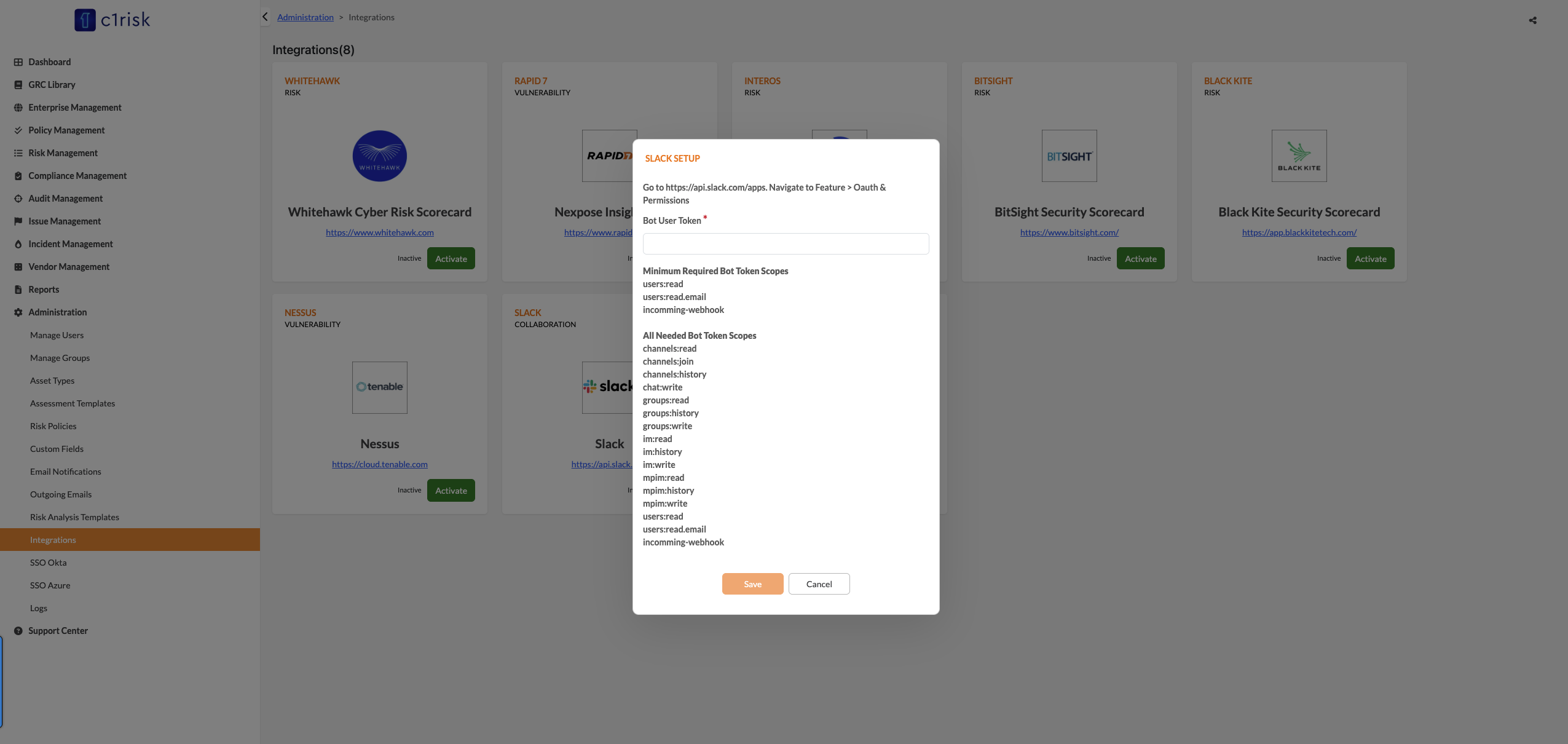
Configure C1Risk:
Once installed, copy the Bot User OAuth Token (starts with
xoxb-).In CyberOne, navigate to Administration > Integrations.
Select Slack and click activate
Paste the Bot User OAuth Token into the designated field.
Save your settings.
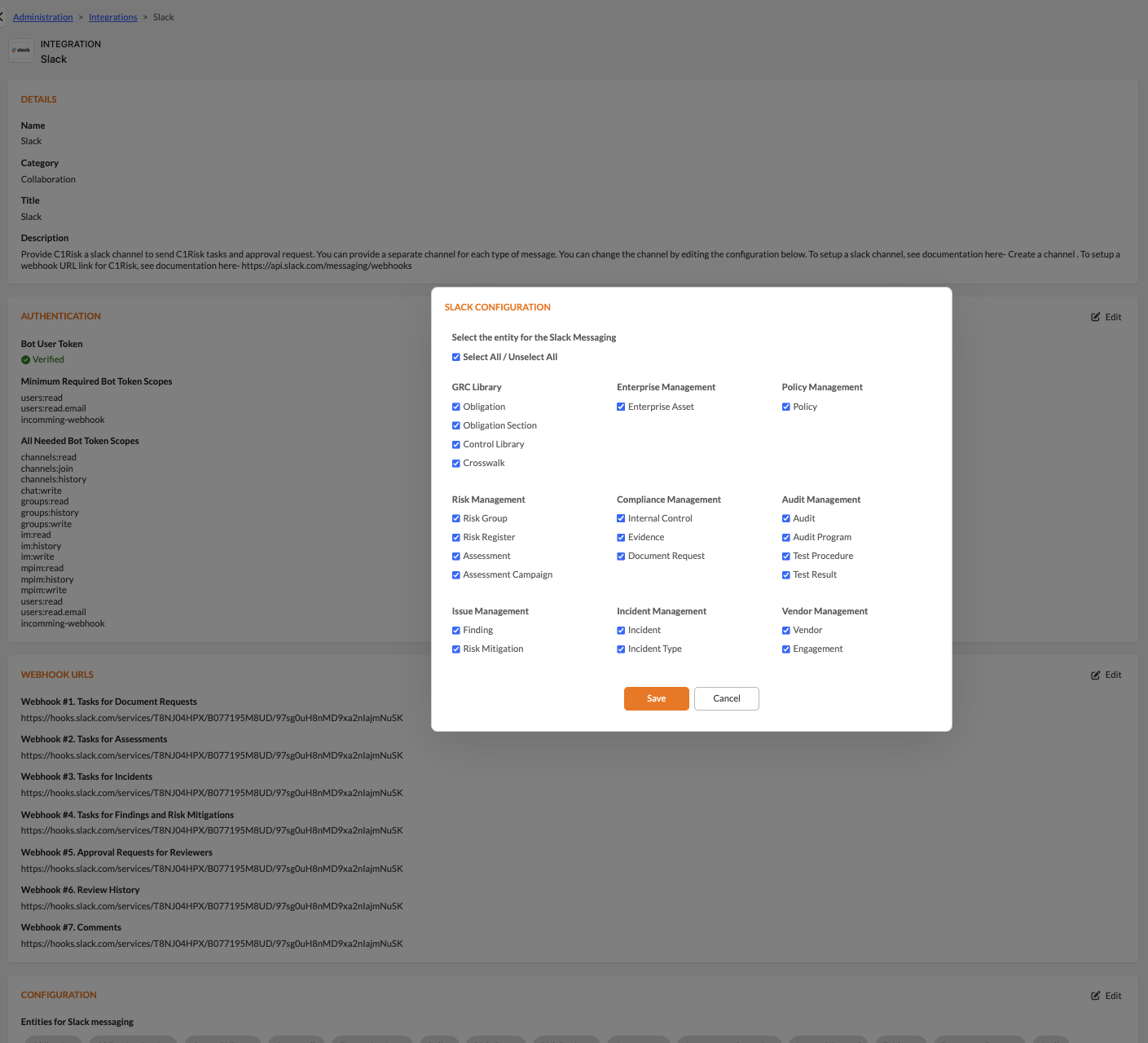
Configure Entities
Once Slack integration detail page, got Configuration section and click Edit to select entities for slack messaging
II. For Existing Customers: Updating Configuration for Direct Messaging
If you already have the Slack integration active, you must update your Slack App’s scopes and reinstall it to enable the new DM feature.
Update Scopes:
Log in to the Slack API page and select your existing CyberOne app.
Navigate to OAuth & Permissions.
Under Bot Token Scopes, add the following missing permissions:
channels:joinchannels:historychat:writegroups:readgroups:historygroups:writeim:readim:historyim:writempim:readmpim:historympim:write
Reinstall App:
After adding the new scopes, a yellow banner will appear at the top of the page indicating that you need to reinstall the app for the changes to take effect.
Click the link in the banner or scroll to the OAuth Tokens for Your Workspace section and click Reinstall to [Your Workspace Name].
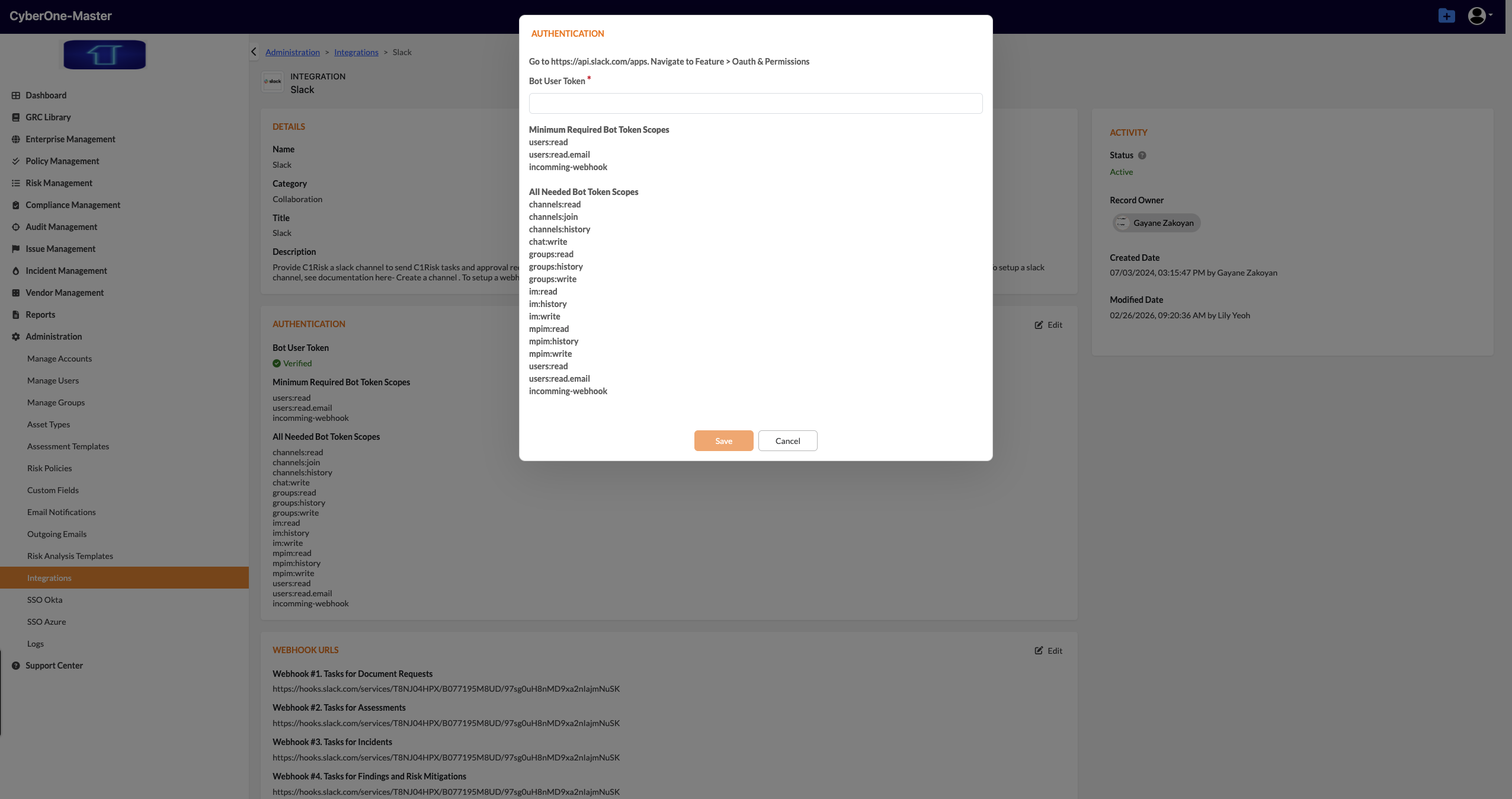
Update C1Risk Token:
If your Bot User OAuth Token has changed, copy the new token.
In CyberOne, go to Administration > Integrations > Slack and update the token.
III. Using the New Slack Direct Message Feature
Once the configuration is complete, you can use the Slack component within record in C1Risk.
Locate the Slack Component: Open record detail page in C1Risk. You will see a Slack component, typically located on the right top action menu section .
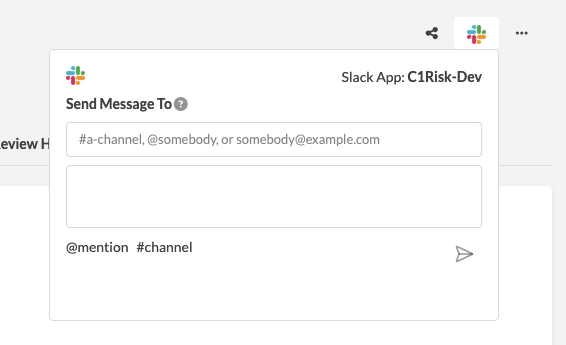
Select Recipients: In the Send Message To field, you can search for and select:
Individual Users: Type the name of a workspace member. (prefixed with @ or type email). The system automatically includes the logged-in C1Risk user as a recipient by default, provided your C1Risk account email matches your Slack account.
Channels: Type the name of a public or private channel (prefixed with
#).Please note below Slack rules:
- System can send to multiple contacts
- System can send to contacts or channel; not bot
- System can send to a single channel; not multiple channels
Compose and Send:
Type your message in the text box.
Click the Send button.
View in Slack:
The recipient will receive a message in Slack containing your text and a link back to the specific record in C1Risk.
The message will also indicate who sent it.

Continue the Conversation: Any replies in Slack can be seen by members of the channel or the individual recipient, facilitating real-time collaboration on the record.
IV. Important Notes on Data Synchronization and Cache
To ensure optimal performance, C1Risk uses a caching system for Slack contacts and channels. Please be aware of the following synchronization schedules:
Daily Scheduled Refresh: All Slack contacts and channels are automatically refreshed in the C1Risk cache every day at midnight.
System Release Refresh: The cache is also automatically reloaded every time a new system release is deployed. This reload process typically takes approximately 5 minutes to complete.
Known Synchronization Behaviors: Due to the caching logic above, users may encounter the following scenarios:
New User/Channel Delay: When a new user or channel is added to your Slack workspace, it may take up to 24 hours to appear in the C1Risk selection menu.
Release Downtime: During a system release, please wait at least 5 minutes for the cache to fully reload before attempting to select contacts or channels for direct messaging.
Was this article helpful?
That’s Great!
Thank you for your feedback
Sorry! We couldn't be helpful
Thank you for your feedback
Feedback sent
We appreciate your effort and will try to fix the article