This manual outlines the core relationship between the Risk Register and Risk Analysis Templates, providing step-by-step instructions for setup, analysis, and advanced management.
1. The Golden Rule
The most important concept to understand is that The Risk Register is the "Boss." The Risk Register determines which Analysis Template must be used for all risks within that specific register.
By setting the template at the register level, you ensure total consistency across your project team.
2. Setting Up Your Risk Register
Follow these steps to create a new register and lock in your template:
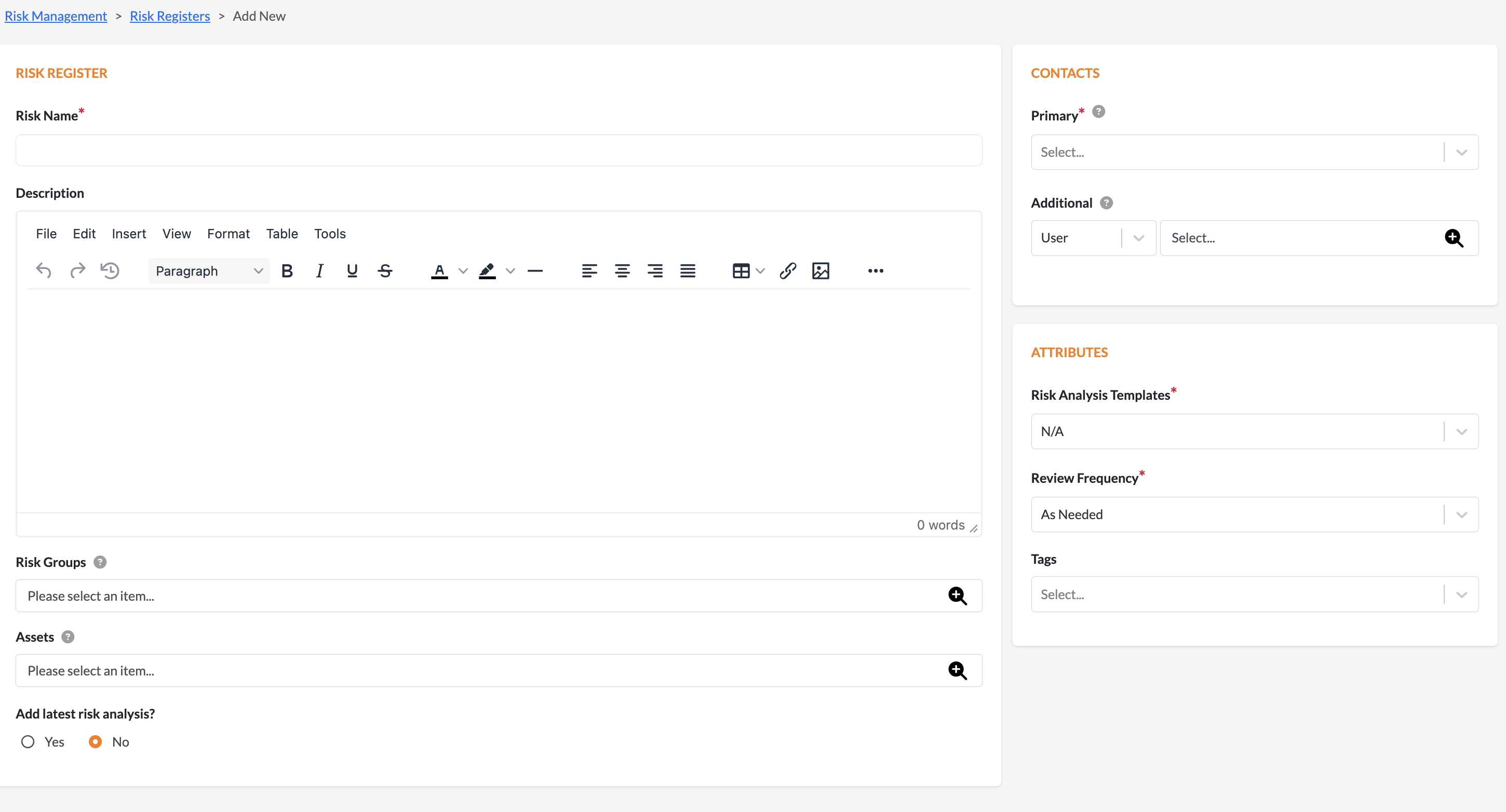
Navigate to the Risk Management tab and select Risk Register.
Click + Add New.
Enter the Risk Name and a brief description.
Locate the Risk Analysis Template field under the Attributes section.
Select your desired template from the dropdown menu (e.g., Cybersecurity 2025 or RAT-000021).
Assign a Primary Contact and click Save.
3. Adding a Risk Analysis
Once your register is established, you can begin analyzing specific risks.
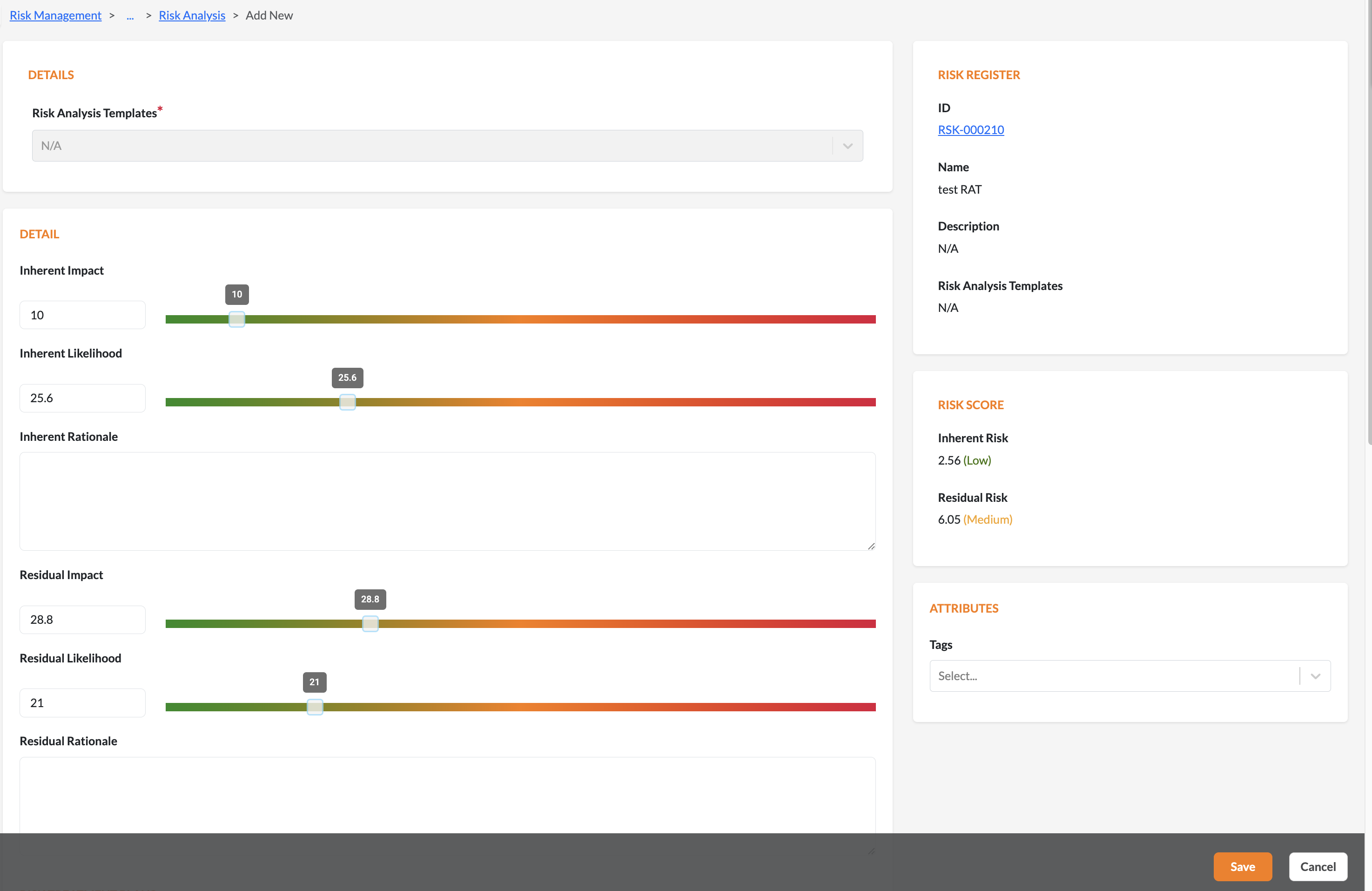
Open your Risk Register and go to the Risk Analysis tab.
Click Add New.
Note: The Risk Analysis Template field will be greyed out and locked. This is because it is inherited from the Risk Register (The Golden Rule).
Fill in the specific details for the risk, and click Save. The system will automatically calculate the Risk Score based on the chosen template.
4. Changing the Template
If your project evolves and you need to switch to a different analysis format:
Go back to the Risk Register level (not the individual analysis).
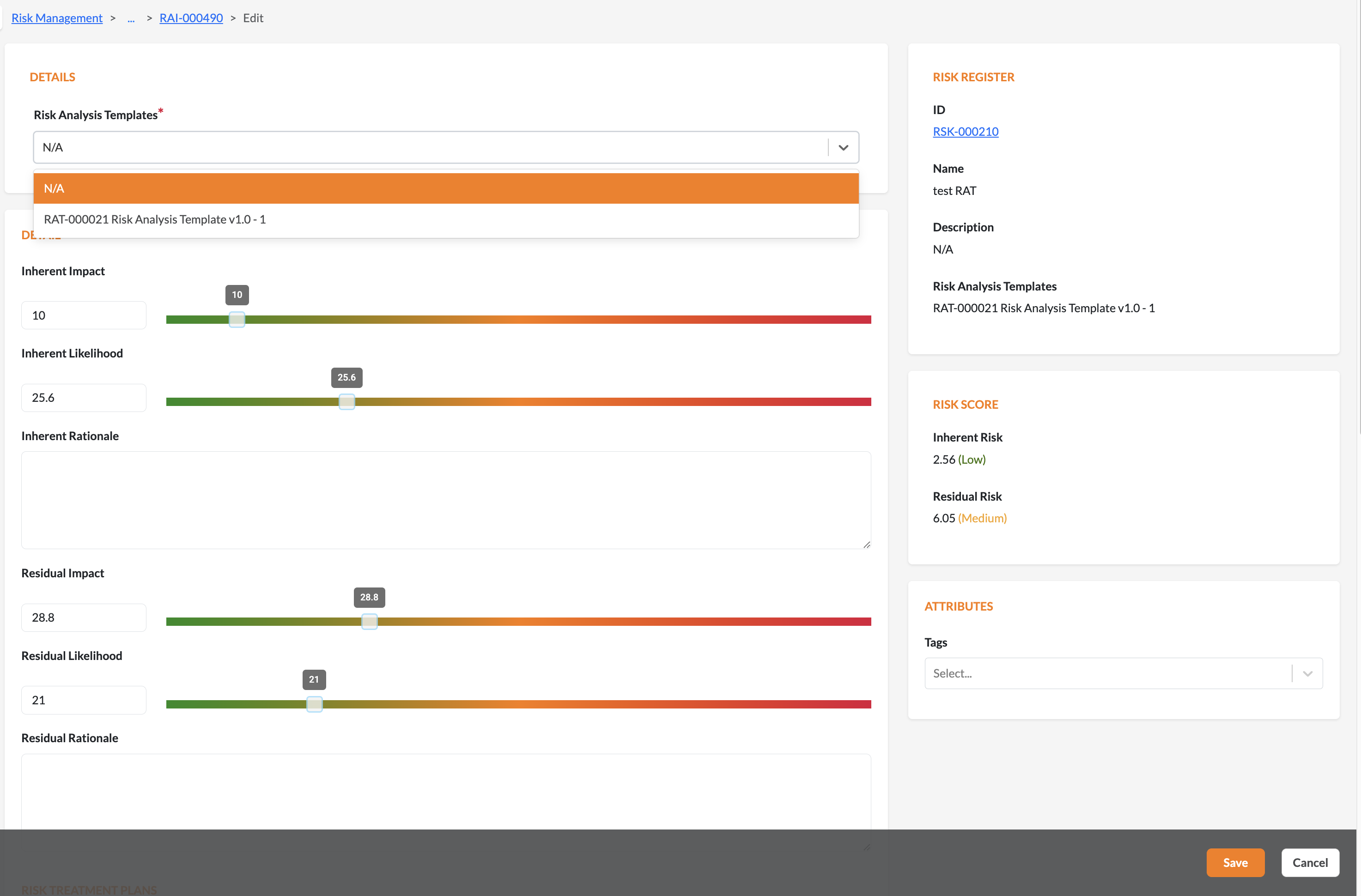
Select Edit on the Risk Register.
Choose a New Template from the dropdown menu and click Save.
When you return to an existing Risk Analysis, the system will offer you a choice:
Keep Original: Stick with the old format for that specific record.
Update: Migrate the analysis to the new standard you just set.
5. Power-User Tip: Filtering Registers
If you are managing dozens of projects, use the Filter feature to stay organized.
In the Risk Register List View, click the More dropdown or the Risk Analysis Template column filter.
Select a specific template to instantly view only the registers using that standard.
Benefits: This streamlines reporting for auditors and ensures you can verify compliance across multiple projects in seconds.
Was this article helpful?
That’s Great!
Thank you for your feedback
Sorry! We couldn't be helpful
Thank you for your feedback
Feedback sent
We appreciate your effort and will try to fix the article