This user manual provides instructions for utilizing the enhanced bulk contact management features within the C1 Risk platform. These tools are designed to streamline the process of updating multiple records simultaneously, ensuring precision and efficiency.
Overview of Bulk Contact Change Types
The platform now offers four distinct operations for managing additional contacts in bulk:
| Change Type | Functionality |
| Add to Existing Contacts | Adds new users or groups to the existing contact list of selected records. |
| Replace All Contacts | Removes all existing contacts from selected records and replaces them with new ones. |
| Replace One Contact | Targets a specific contact for replacement across multiple records while leaving others unchanged. |
| Delete Contacts | Removes selected users or groups from the additional contact lists of multiple records. |
How to Perform a Bulk Operation
1. Select Records and Open the Tool
Navigate to the relevant module (e.g., Internal Controls, Risk Groups, or Risk Mitigation).
Select the records you wish to update.
Click the Bulk Change Additional from action menu. The subtitle will display "CHANGING [X] RECORD(S)" to confirm your selection.
2. Choose an Operation
Select your desired operation from the Change Type dropdown menu.
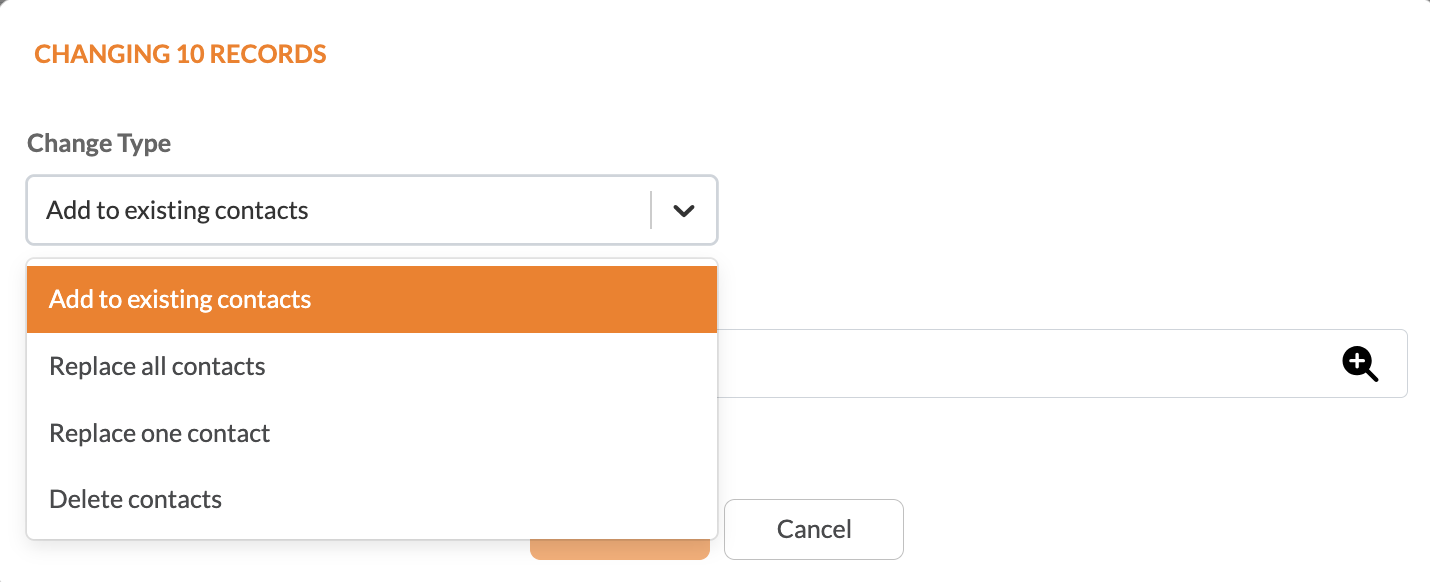
Add to Existing Contacts
Select the users or groups you wish to add.
The system will append these contacts to any existing contacts already assigned to the records.
Click Save to apply the changes.
Precision Logic: The system will skip records where that specific individual is already primary contact.
Replace All Contacts
Select the new set of users or groups.
Warning: This will delete all current additional contacts on the selected records.
Click Save to proceed.
Precision Logic: The system will skip records where that specific individual is already primary contact and remove existing additional contacts.
Replace One Contact
Replace: Select the specific contact you wish to remove from the dropdown list. This list is populated from the contacts currently assigned to the selected records.
To Additional Contact(s): Select the new user(s) or group(s) that should take their place.
Precision Logic: The system only replaces the contact in records where that specific individual or group appears; records without that contact remain untouched.
Click Save to execute.
Delete Contacts
Select the specific users or groups you wish to remove.
You may use the Select All option for rapid removal.
Click Save to confirm the deletion.
Key Features & Indicators
Status Visibility: If a user is inactive, their status will be clearly displayed next to their name in selection lists.
Chip Management: Selected contacts appear as "chips." You can click the 'x' on a chip to remove it from your pending change list before saving.
Save Button Validation: The Save button is dynamically disabled until all required fields for the chosen operation are completed.
Was this article helpful?
That’s Great!
Thank you for your feedback
Sorry! We couldn't be helpful
Thank you for your feedback
Feedback sent
We appreciate your effort and will try to fix the article