This user manual provides a comprehensive guide to the Reviewer Reassign feature, which allows for the modification of reviewers even after an approval request has been submitted.
1. Overview and Permissions
The Reviewer Reassign feature is designed to provide flexibility in the approval workflow. It allows users to change an active reviewer without needing to cancel and restart the entire process.
Availability: Reassignment is only possible when the Approval Status is "Open".
2. How to Reassign a Reviewer
Follow these steps to change a reviewer for a specific record:
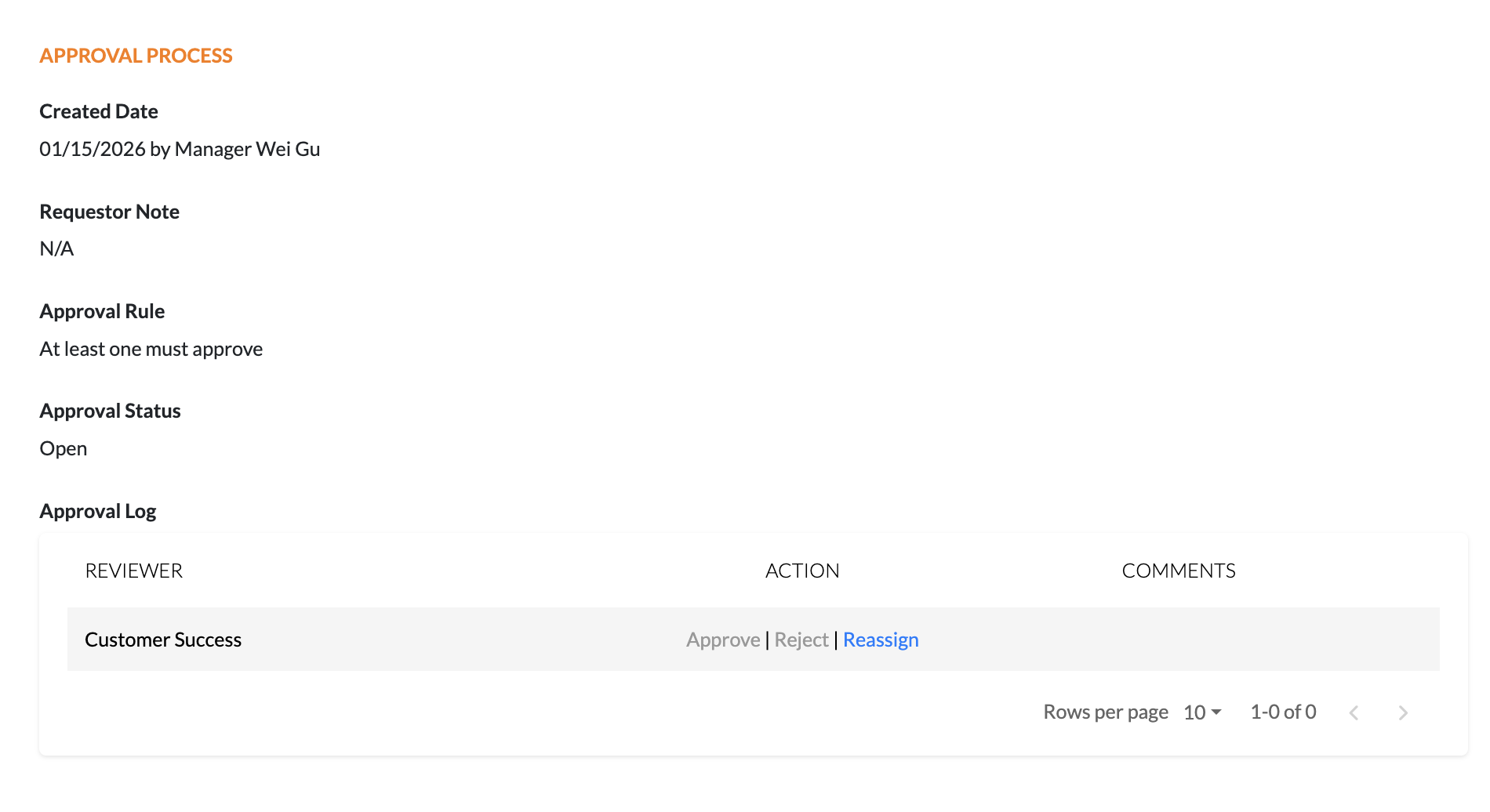
Locate the Action: In the approval process component, find the reviewer you wish to replace within the Approval Log.
Trigger the Reassign: Click the "reassign" link located next to the reviewer’s name.
Use the Pop-up Window: A window titled "CHANGE REVIEWER" will appear.
Select New Reviewer: Use the provided input field to select a new reviewer from the list of authorized users.
Save Changes: Click "Save" to complete the reassignment.
3. Understanding the Activity Log
All reassignment activities are automatically logged to maintain a clear audit trail.
Log Organization and Sorting
The Approval Log is organized to prioritize pending actions while maintaining a historical record:
Top Section: Reviewers with pending actions or those who have already completed an action (Approve/Reject/Reassign) are listed at the top.
Bottom Section: Reviewers who have been reassigned (and thus have no pending action) are moved to the bottom.
Sorting Logic: The reassigned list is sorted by the most recent reassignment date at the top.
Display: Each reassignment entry clearly shows who was reassigned and the name of the user who performed the action.
Was this article helpful?
That’s Great!
Thank you for your feedback
Sorry! We couldn't be helpful
Thank you for your feedback
Feedback sent
We appreciate your effort and will try to fix the article