1. Managing the Next Review Date
The Next Review Date field is used to schedule and track upcoming reviews for an entity.
Setting the Date (Add/Edit Page)
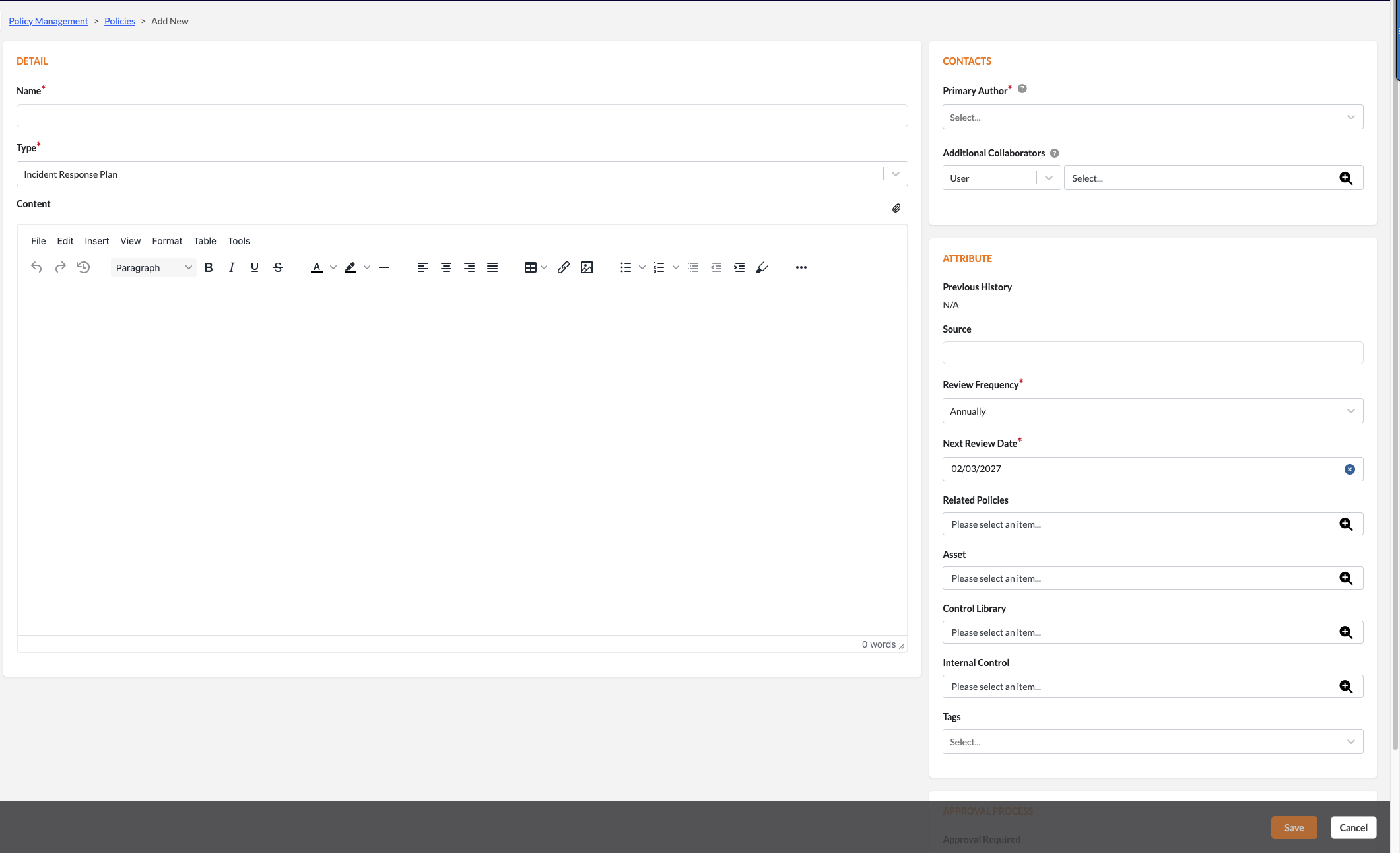
Automatic Population: When you select a Review Frequency, the system will automatically populate the Next Review Date based on that frequency.
Manual Overwrite: You can manually change the auto-populated date to any date at least one day after today.
"As Needed" Frequency: If the frequency is set to "As Needed," the Next Review Date will remain blank by default, though you can still enter one manually.
Optional Field: This field is optional. To clear a selected date, click the "x" icon within the field.
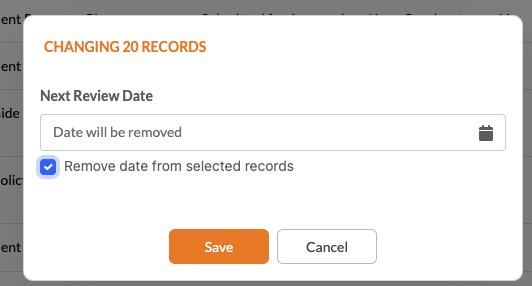
Bulk Updates
You can change or remove the Next Review Date for multiple records at once using the Bulk Operation feature in the List View.
2. Review History Subtab
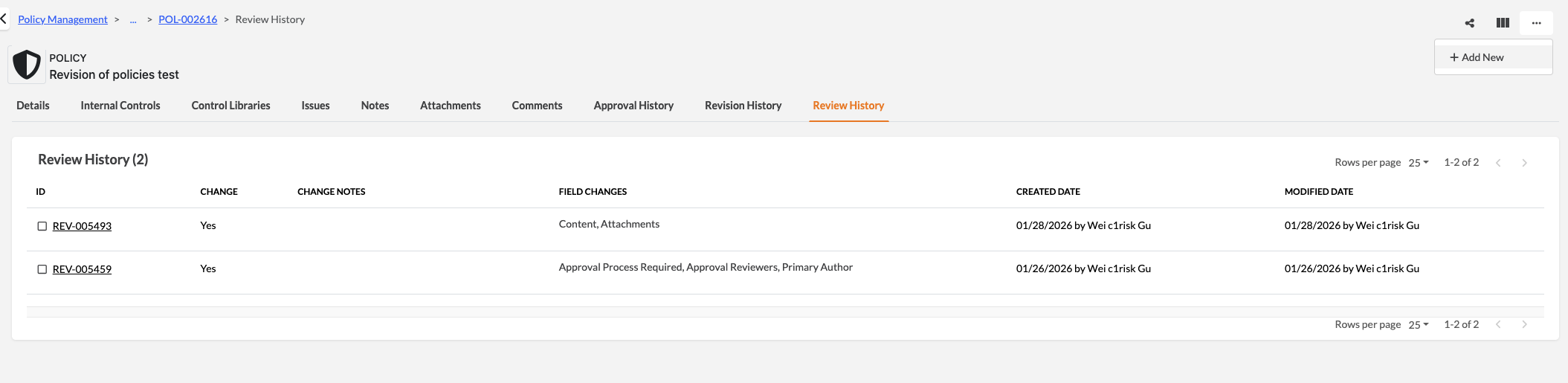
The Review History subtab provides a detailed log of all manual and system-generated review activities.
Adding a Manual Review Log
Navigate to the Review History subtab of an entity.
Click Add New to create a manual review record.
Enter your Change Notes and save the record.
Viewing and Editing Records
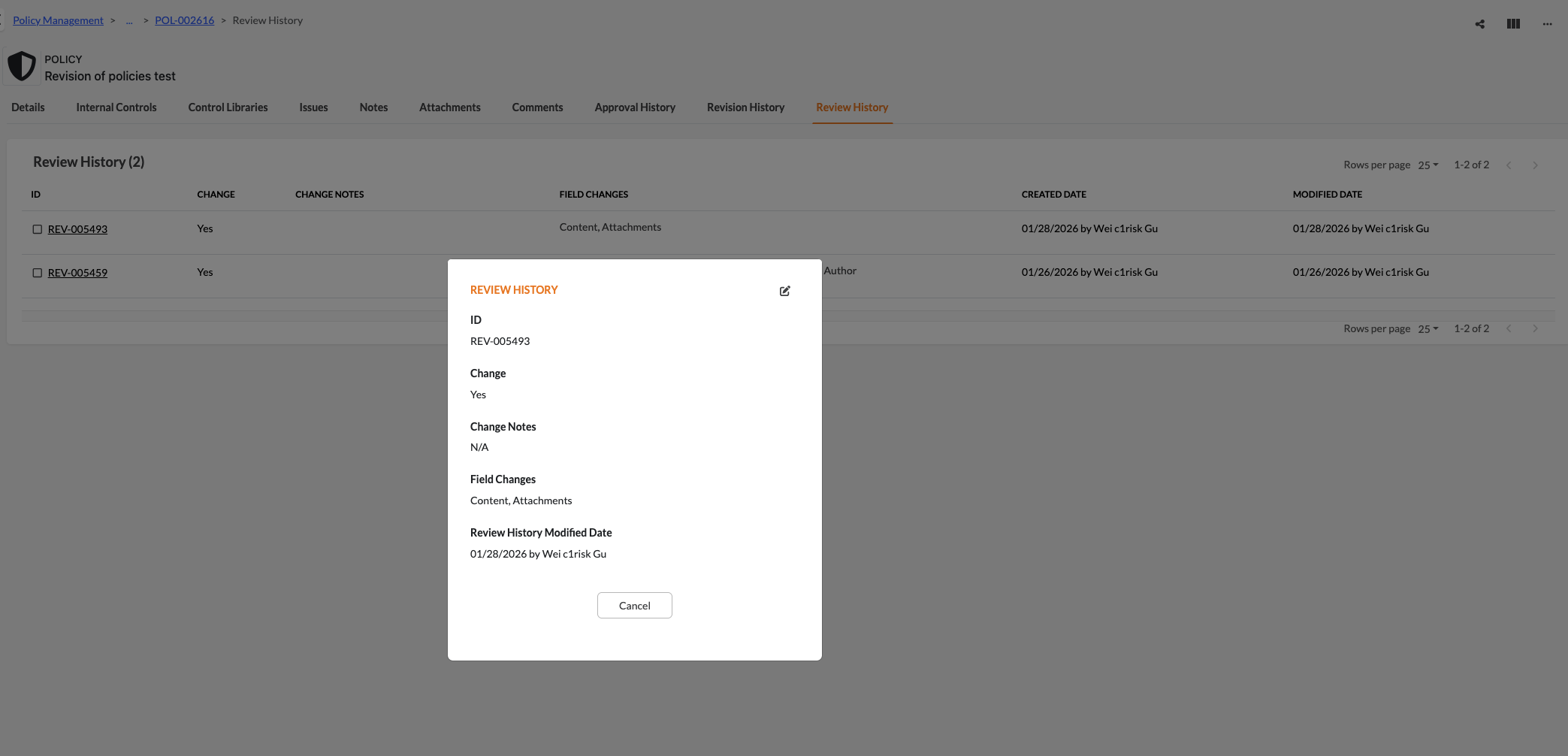
Manual Records: If you created the record, you can click Edit to update your notes.
System Records: Records automatically created by the system (to track field changes), you can click Edit to update your notes.
Audit Trail: Click the REV ID to view the full details of a specific review record.
Note: The "Latest Review History" component has been removed from the main Detail page to streamline the interface; all history is now managed within the subtab.
Was this article helpful?
That’s Great!
Thank you for your feedback
Sorry! We couldn't be helpful
Thank you for your feedback
Feedback sent
We appreciate your effort and will try to fix the article