1. Overview
The Record Viewer is a global contact type that provides read-only access to records for users with limited roles, such as General or Vendor users. When a user or group is assigned to a record solely as a Record Viewer, they can view the record's details but are restricted from making any edits or updates
2. Core Logic and Permissions
To ensure data integrity and security, the Record Viewer follows a strict permission hierarchy:
Read-Only Restriction: Users assigned solely as a Record Viewer will have all "Edit," "Delete," and "Add New" options disabled on the record detail page.
The "Most Access" Rule: If a user is assigned as a Record Viewer but also holds a more permissive role on the same record (e.g., Primary Contact, Additional Contact or Owner), they will retain their higher Update/Read capabilities.
Floating Table Security: If a Record Viewer does not have permission to access a linked record shown in a table (e.g., Asset floating table in Policy record), the system will remove the hyperlink. The user can see the record's fields in the floating table but cannot click to open it.
Restricted Actions: Viewers are prevented from performing functional actions such as submitting for approval, adding document responses, or resolving risk mitigations.
3. How to Assign Record Viewers
Record Viewers can be assigned during the creation of a record or by editing an existing one.
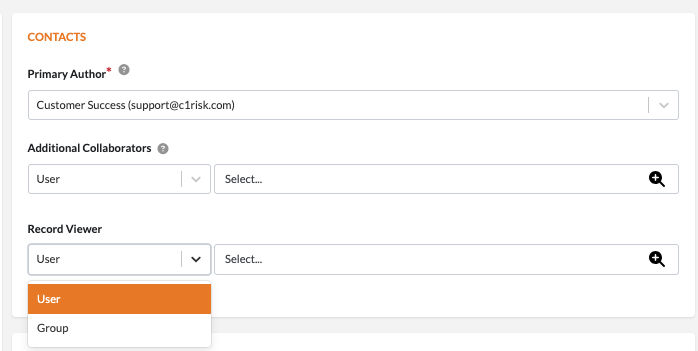
A. Assigning via the Contact Component
Navigate to the Details tab of any record.
Locate the Contacts section on the right-hand side.
The Record Viewer field is positioned immediately after "Additional Contact".
Click the field to Lookup and select single or multiple Users or Groups.
Note: The lookup list automatically excludes users who already have write permissions (Admins/Managers/Read-Only) to ensure unique selection.
B. Bulk Assignment
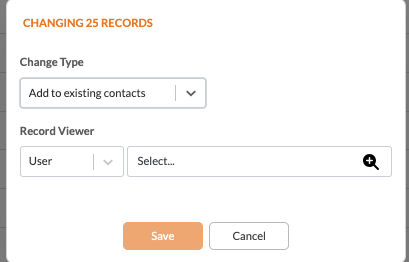
You can assign Record Viewers to multiple records simultaneously from the List View:
Go to the List View page for any module (e.g., Enterprise Assets or Findings).
Select the checkboxes for the records you wish to update.
Open the Action Menu and select Bulk Change Record Viewer.
Choose the Change Type (Add to existing, Replace all, Replace one, or Delete) and select the desired users/groups.
4. Viewing and Filtering
The platform provides several ways to track and find records assigned to Record Viewers:
List View Columns: You can add "Record Viewer" as a column in your list view by clicking the Column icon and selecting it from the list.
Filters: A "Record Viewer" filter is available on all entity list view pages, allowing you to quickly find records assigned to specific viewers.
Subtab Visibility: When a user with a limited role (e.g., General role) clicks on a subtab, they will only see the specific records where they have been assigned as a Record Viewer.

Was this article helpful?
That’s Great!
Thank you for your feedback
Sorry! We couldn't be helpful
Thank you for your feedback
Feedback sent
We appreciate your effort and will try to fix the article