1. Overview This manual covers two key enhancements to the Compliance Management module: expanded system permissions for General Users (specifically regarding Evidence and Document Requests) and the new Shared Access feature, which automates record visibility for linked contacts.
2. General User Capabilities
Evidence Management
The system has been updated to allow General Users greater flexibility in managing Evidence records:
Visibility: General Users can now access the Evidence entity directly from the navigation menu. They can also view the Evidence subtab within various detail pages, including Obligations, Control Library, Internal Controls, Enterprise Assets, Vendors, and Engagements.
Creation & Assignment: General Users are now permitted to create new Evidence records and can be assigned as Primary, Additional, or Record Viewer contacts.
Document Requests Reassignment
General Users also have expanded access to Document Requests, with specific capabilities depending on their assignment:
Reassignment: If a General User is assigned as a Primary or Additional contact to a Document Request, they can use the top-right action menu on the detail page to reassign it. They can change the Primary Contact, Additional Contacts, or Record Viewers.

3. Shared Access
What is Shared Access?
Shared Access is a new feature for Internal Controls, Evidence, and Document Requests that automatically assigns contacts from linked entities as "Record Viewers" for the parent record.
How Shared Access Works by Entity:
Internal Controls: Setting Shared Access to "Yes" grants Record Viewer access to contacts from linked Evidence and Document Requests.
Evidence: Setting Shared Access to "Yes" grants Record Viewer access to contacts from related Internal Controls and Document Requests.
Document Requests: Setting Shared Access to "Yes" grants Record Viewer access to contacts from related Internal Controls, Evidence, and Previous Document Requests.
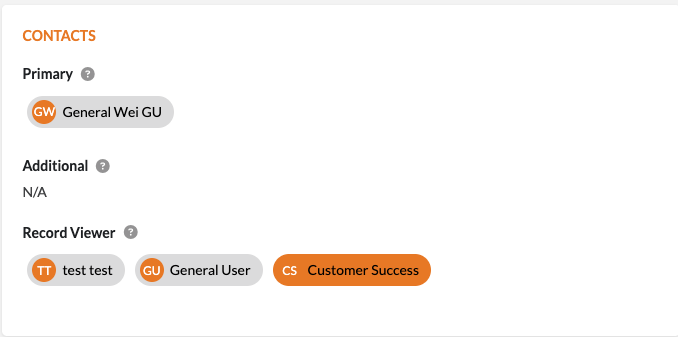
Visual Indicators (Contact Chips) To easily distinguish between contacts who were assigned directly and those inherited via Shared Access, the system uses color-coded contact chips:
Gray Chips: Represent direct contacts explicitly assigned to the record.
Orange Chips: Represent shared contacts automatically brought in from linked records when Shared Access is enabled.
Managing Shared Access
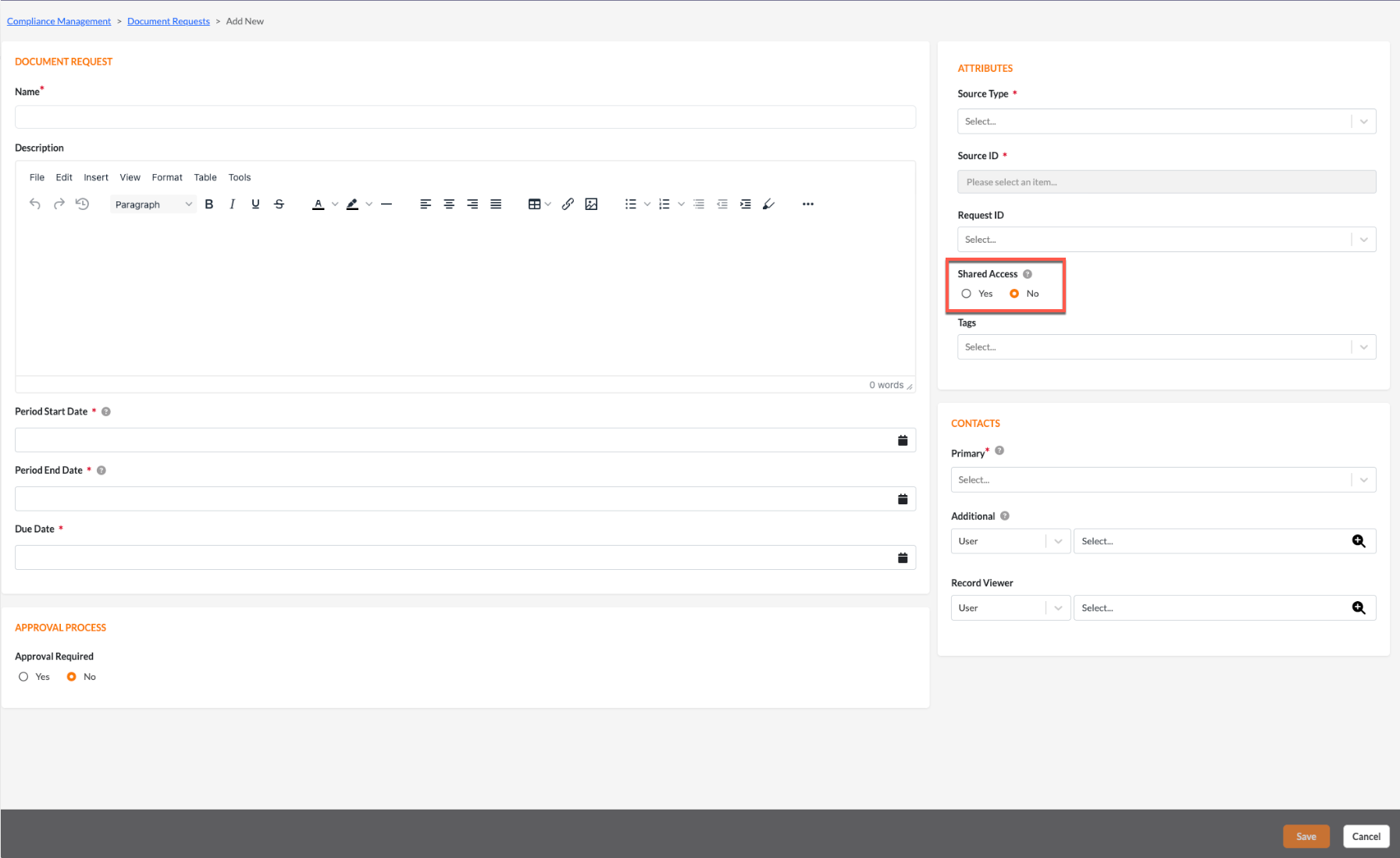
Add/Edit Page: The Shared Access field is a radio button available on the Add/Edit page of an entity. By default, this value is set to "No".
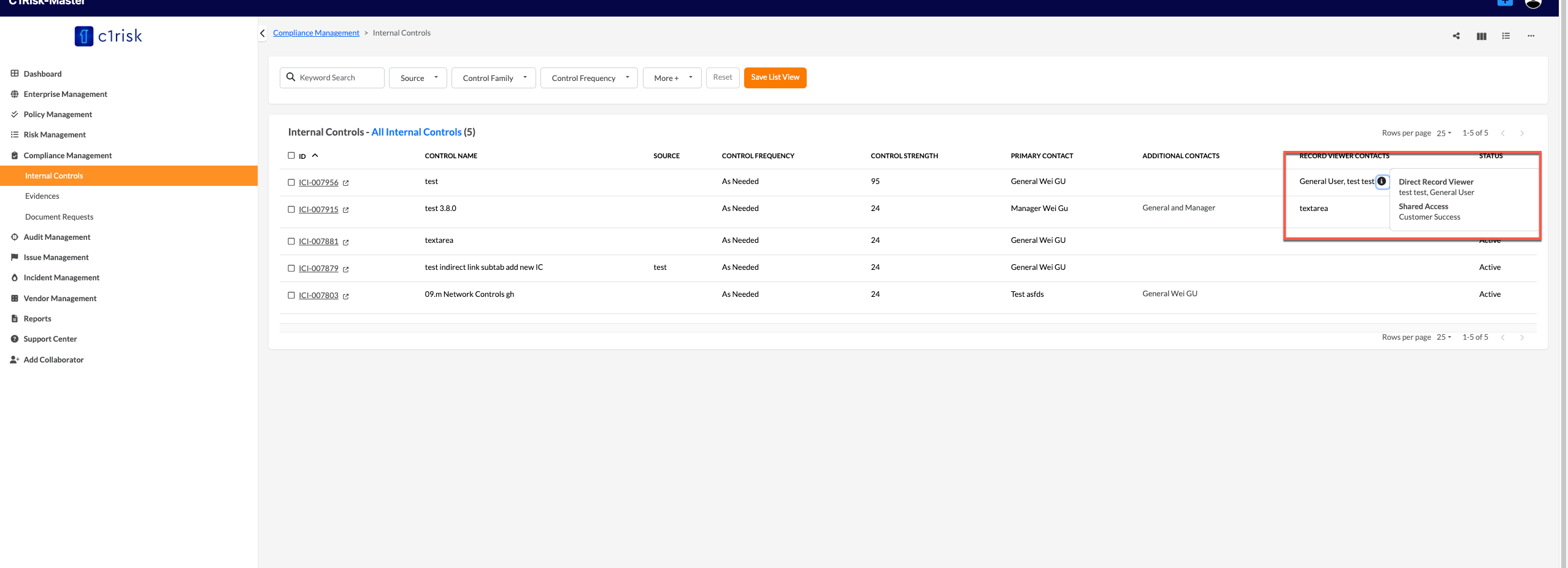
List View: You can add a dedicated "Shared Access" column to your List View to quickly identify which records have sharing enabled. When there is shared access, you can click the "i" icon to view the full list of direct and shared record viewers.
Filtering & Bulk Operations: You can filter your List View based on Shared Access status (Yes/No). Additionally, you can use the Bulk Operations menu to change the Shared Access setting for multiple records simultaneously.
Was this article helpful?
That’s Great!
Thank you for your feedback
Sorry! We couldn't be helpful
Thank you for your feedback
Feedback sent
We appreciate your effort and will try to fix the article