Record History Log User Guide
Modified on Fri, 3 Jul at 3:52 PM
Managing corporate compliance and operational risk requires complete transparency and accountability, C2Risk includes a robust, automated Record History Log. This guide provides a comprehensive overview of how C2Risk tracks, renders, and manages change histories across your Compliance and Issue Management modules.
1. Overview
The Record History Log is an automated, tamper-proof tracking system that captures every administrative and operational change made to key compliance and risk records.
- Where is it available?The History tab/icon is built into the detail pages of key records across two primary modules:
- Compliance Management: Internal Controls, Evidence records, Document Requests, and Document Responses.
- Issue Management: Findings and Risk Mitigations.
- How does it load? To prevent system lag and ensure a lightning-fast user experience, C2Risk uses Lazy Loading. The History Log API is not called during the initial record load; history data is retrieved and rendered only when a user explicitly clicks the dedicated History tab on the record page.
- Is there backtracking? History logging begins immediately upon feature activation and deployment. Existing data prior to the activation of the history log will remain blank; the system will record and build out the audit log dynamically moving forward.
- Creation Logging: The system does not just track post-creation updates—it logs the very moment a record is created, tracking the initial values of all populated fields as a transition from (Blank/None) to your new values.
2. Tracked Event Taxonomy
C2Risk captures four distinct event categories to cleanly organize change histories:
| Event Type | Description | Common Examples |
|---|---|---|
| Field Change | Occurs when a user directly updates a data field, or when the system automatically recalculates a calculated field. | Changing a Control Title; updating a description; system recalculation of Days Open, Days Past Due, or Risk Scores. |
| Contact Change | Captures changes to user roles, assignments, or group permissions on the record. | Reassigning a Primary Contact, adding an Additional Contact, changing the Record Owner, or updating Record Viewers. |
| Record Link | Records the moment a direct relational link is established or removed between records. | Linking/unlinking an Asset, Policy, Evidence file, parent Finding, Attachment, or linking a Jira Card. |
| Action | Logs user-triggered system actions. | Clicking the button to manually send an Email Reminder to a contact. |
Note on Indirect Links: C2Risk specifically tracks direct record-linking actions. Indirect relationships (such as relationships inferred through parent-child asset inheritance) are handled separately by the platform and do not create duplicate history log entries.
3. Anatomy of a History Log Entry
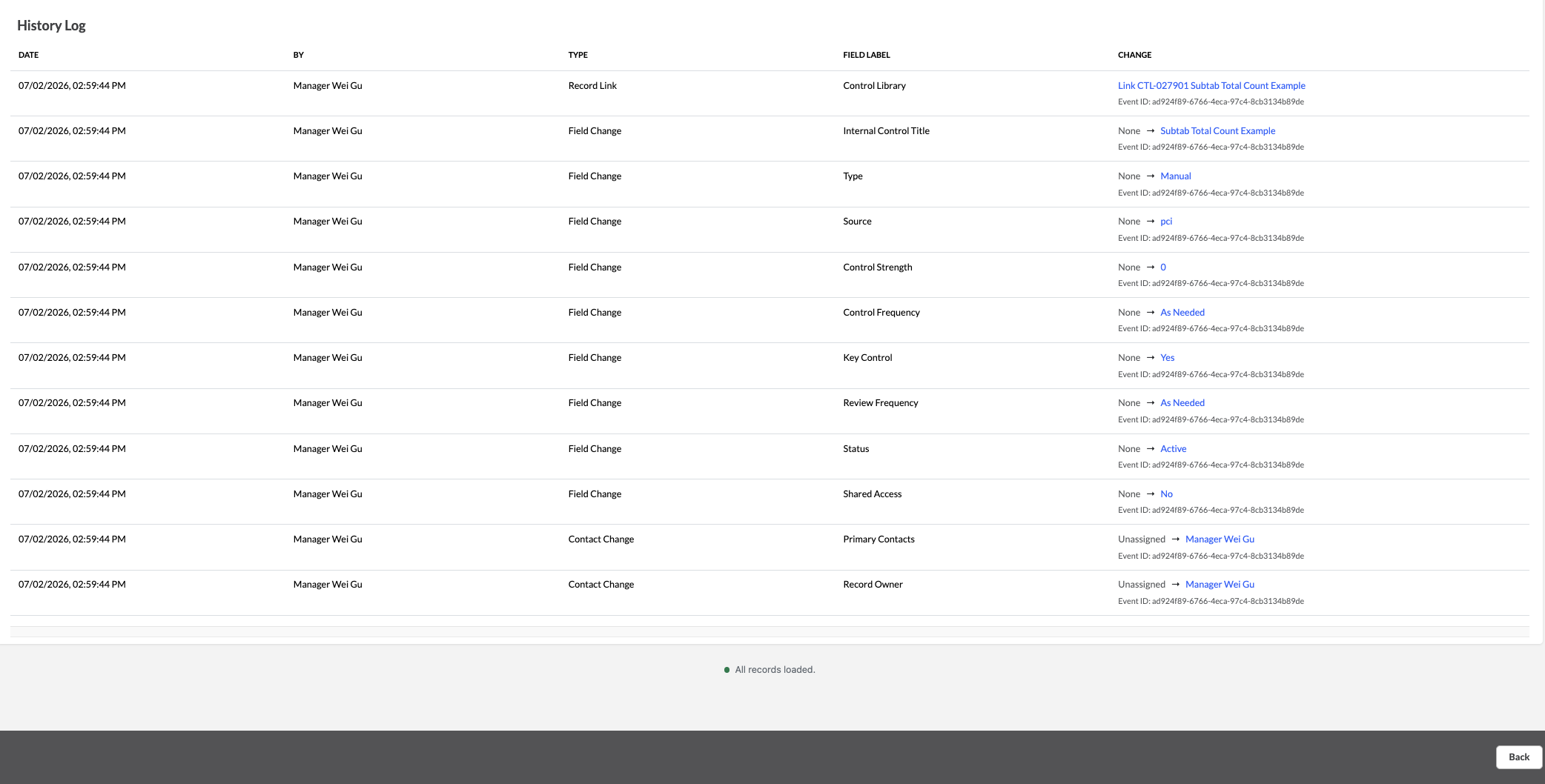
Every change entry in the log captures a detailed schema of metadata:
- Timestamp: The exact date and time the change occurred, automatically rendered in your local timezone with the appropriate UTC offset.
- Actor: The full name of the user who made the change. If the change was automated (such as a system status update or calculated date shift), the actor is listed as System or C1Risk Support.
- Event Type: One of the four categories (Field Change, Contact Change, Record Link, or Action).
- Field Label: The user-friendly field name as it appears on the screen (e.g., "Internal Control Title" instead of the backend database key
name). - Previous Value & New Value: Clear transitions showing what the value was before the change and what it became (rendered as
Previous Value-->New Value). Newly created fields show asNone-->New Value.
For Multi-Field Updates: When you edit and save multiple fields simultaneously, C2Risk groups all of these rows under a single timestamp and a shared Event ID so your log remains organized and readable.
4. Permissions and Access Control
C2Risk strictly enforces role-based access security to ensure sensitive audit data is only visible to authorized eyes.
- Inherited Permissions: Access to a record's History Log matches the view permissions of the underlying record itself. If a user does not have permission to view a specific Finding or Internal Control, they are entirely blocked from viewing its history.
- Role Minimums: To view record history, users must have at minimum Read-Only access to the active record. Administrators and Managers can view history logs across all records in their assigned modules.
- Cross-Module Link Access: Record owners and risk managers can view the history logs of linked items (such as linked Risk Mitigations or Evidence) only if they are explicitly permitted access to those linked records.
Please note that your History Log data is currently configured to be retained for 12 months. If your organization requires a different data retention window to meet your compliance or internal policy needs, please reach out directly to C1Risk Support to request an update to your retention period.
NotebookLM can be inaccurate; please double check its responses.
Was this article helpful?
That’s Great!
Thank you for your feedback
Sorry! We couldn't be helpful
Thank you for your feedback
Feedback sent
We appreciate your effort and will try to fix the article