1. Overview
The Re-Open feature allows customers to manage document request responses after they have been submitted or approved. This process ensures transparency for auditing while providing the flexibility to revise data or collect additional information when needed.
2. Permissions and Conditions
You can only re-open a Document Request if specific conditions are met:
Allowed Statuses: The option to re-open is only enabled if the Document Request is currently in Submitted, Submitted for Approval, or Approved status.
Required Permissions: Only the Record Owner, Primary Contact, Additional Contact, or users with the Admin or Manager role can perform the re-open action.
3. How to Re-Open a Document Request
Navigate to the View Detail page of the specific Document Request you wish to modify.
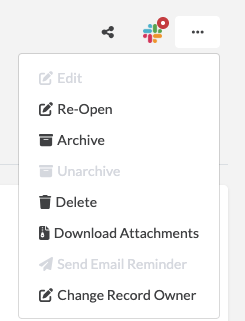
Click the Action Menu (•••) located in the top right corner of the page.
Select Re-Open from the dropdown menu.
4. What Happens When You Re-Open a Record
Once the "Re-Open Record" action is triggered, the system automatically performs several actions:
Status Update: The status of the Document Request is immediately updated to Re-Open.
Edit Access Restored: The system re-enables the "Edit" option in the action menu and displays the Edit button in the Document Response section, allowing you to modify the response directly from the view detail page.
5. Tracking Changes (Review History Subtab)
To ensure full audit transparency, the system tracks the history of the request and response in a dedicated Review History subtab.
Event Logging: The system automatically logs the "re-open" events in the Review History.
Automated Field Tracking: Whenever changes are saved, the system automatically tracks modifications to the following fields and manually add change notes:
Document Response changes: Files, URL, and Comments.
Document Request changes: Name, Description, Period Start Date, Period End Date, Due Date, Primary Contact, Additional Contact, Reviewer, Source Type, Source ID, Asset, and Tags.
Manual Entries: Users also have the ability to manually add new review history entries to the list if additional context needs to be documented.
Was this article helpful?
That’s Great!
Thank you for your feedback
Sorry! We couldn't be helpful
Thank you for your feedback
Feedback sent
We appreciate your effort and will try to fix the article