Business Continuity Management User Manual
Modified on Tue, 7 Jul at 5:40 PM
This guide provides a comprehensive overview of the Business Continuity Management (BCM) module in C2Risk. It covers how to create, score, and link Business Impact Analysis (BIA) records, manage dependencies, and map continuity plans to achieve complete operational resilience.
1. Unified BCM Module Architecture
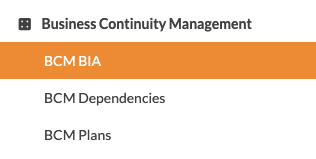
The BCM module is composed of three tightly integrated components accessible from your primary sidebar:
- Business Impact Analysis (BIA): Used to assess and document the potential business impact of disruptions on critical organizational assets.
- BCM Dependencies: Maps upstream and downstream relationships, highlighting Single Points of Failure (SPOF) and recovery gaps.
- BCM Plans: Stores and manages business continuity plans, disaster recovery plans, and incident response procedures.
These components integrate seamlessly with existing C2Risk assets, vendors, and security findings to provide a single pane of glass for organizational resilience.
2. Business Impact Analysis (BIA)
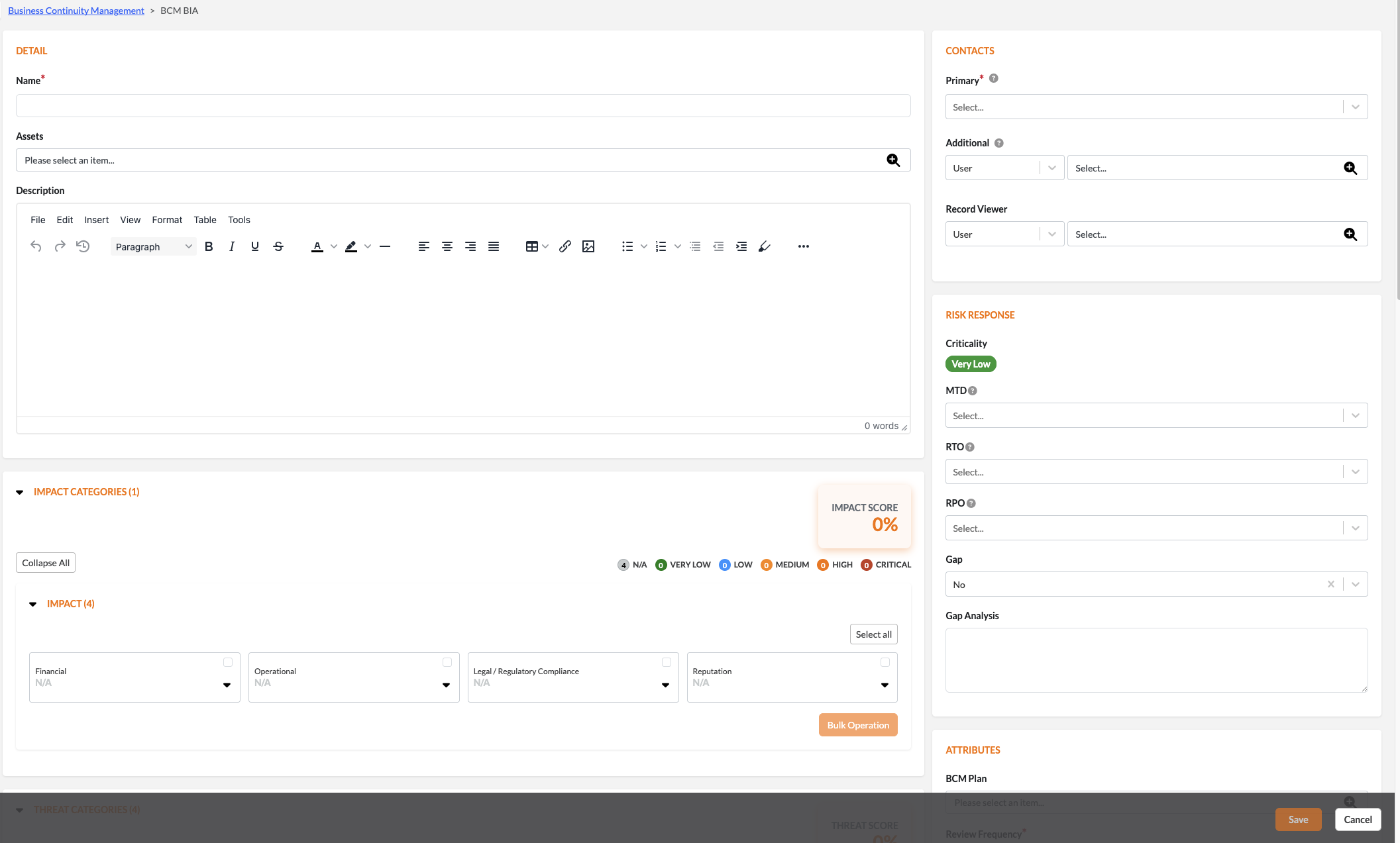
Every BIA record is automatically assigned a unique ID with the prefix BIA-XXXXXX on creation.
Field Definitions & Requirements
| Field Name | Type | Requirement | Description |
|---|---|---|---|
| BIA ID | Autonumber | Read-Only | System-generated unique identifier with BIA- prefix (e.g., BIA-000126). |
| Name | Text | Mandatory | A clear, descriptive name for the BIA record. |
| Asset | Multiple Select | Mandatory | Select one or more relevant enterprise assets tied to this BIA. Restricted to enterprise assets. |
| Asset Type | Single Select | Auto-Populated | Automatically populated based on the selected asset(s). |
| Contacts – Primary | Single Select | Mandatory | User lookup to assign the primary owner/contact responsible for the BIA. |
| Contacts – Additional | Multiple Select | Optional | Lookups for additional personnel involved in the BIA. |
| Contacts – Record Viewer | Multiple Select | Optional | Lookups for users who should have read-only access to this record. |
| Criticality | Single Select | Mandatory | System values: Critical, High, Medium, Low, or Very Low (Default). |
| MTD | Single Select | Mandatory | Maximum Tolerable Downtime. Dropdown interval list. |
| RTO | Single Select | Mandatory | Recovery Time Objective. Dropdown interval list. |
| RPO | Single Select | Mandatory | Recovery Point Objective. Dropdown interval list. |
| Review Frequency | Single Select | Optional | BIA review cycle (e.g., Annually, Semi-Annually, As Needed). |
| Next Review Date | Date | Optional | Auto-calculated from completion date + review frequency. |
| Tags | Label | Optional | User-defined tags for custom categorization and filtering. |
Operational Downtime Metrics (Help Text)
When configuring your downtime metrics, use the following definitions to guide your selections:
- Maximum Tolerable Downtime (MTD): The maximum period a process can be unavailable before severe, irreversible impact occurs to the organization.
- Recovery Time Objective (RTO): The target time to restore a business process or system after a disruption.
- Recovery Point Objective (RPO): The maximum acceptable data loss measured in time (e.g., how much data can be lost before business operations are critically affected).
3. The "Zero-Exclusion" Scoring Formula
Your overall Impact Score and Threat Score are calculated automatically based on the ratings assigned to specific categories in your BIA template. Ratings follow a 5-tier point scale:
- N/A = 0 points
- Very Low = 20 points
- Low = 40 points
- Medium = 60 points
- High = 80 points
- Critical = 100 points
How the Score is Calculated
To prevent unrated or irrelevant categories from artificially dragging down your scores, C2Risk utilizes a Zero-Exclusion average calculation:
- All category values set to N/A (0) are completely excluded from both the numerator and the denominator.
- Only active, qualifying categories with a score greater than 0.0 are averaged.
Example Calculation: Suppose you assess an asset across three impact categories:
- Financial Impact: Low (40)
- Operational Impact: Medium (60)
- Reputation Impact: N/A (0) (Excluded)
The system calculates the score by averaging only the active categories: Score = {40 + 60}/{2} = 50.0% Since Reputation Impact was set to N/A, it was ignored, and the divisor was adjusted to 2 instead of 3.
4. BIA Lifecycle and Administrative Template Rules
Lifecycle States
A BIA record transitions through several transactional states during its lifecycle:
- Open: The record is being drafted or edited.
- Re-Open: The record has been returned for edits after a rejection.
- Submitted for Approval: The record is locked and awaiting review by the assigned Reviewer.
- Approved: The record is officially signed off.
- Archived: The record is stored for historical reference.
⚠️ Archived Record Lock: Once a BIA record is marked as Archived, the edit action is completely disabled, and all fields are locked to preserve historical audit data.
Active Template Synchronization Rule
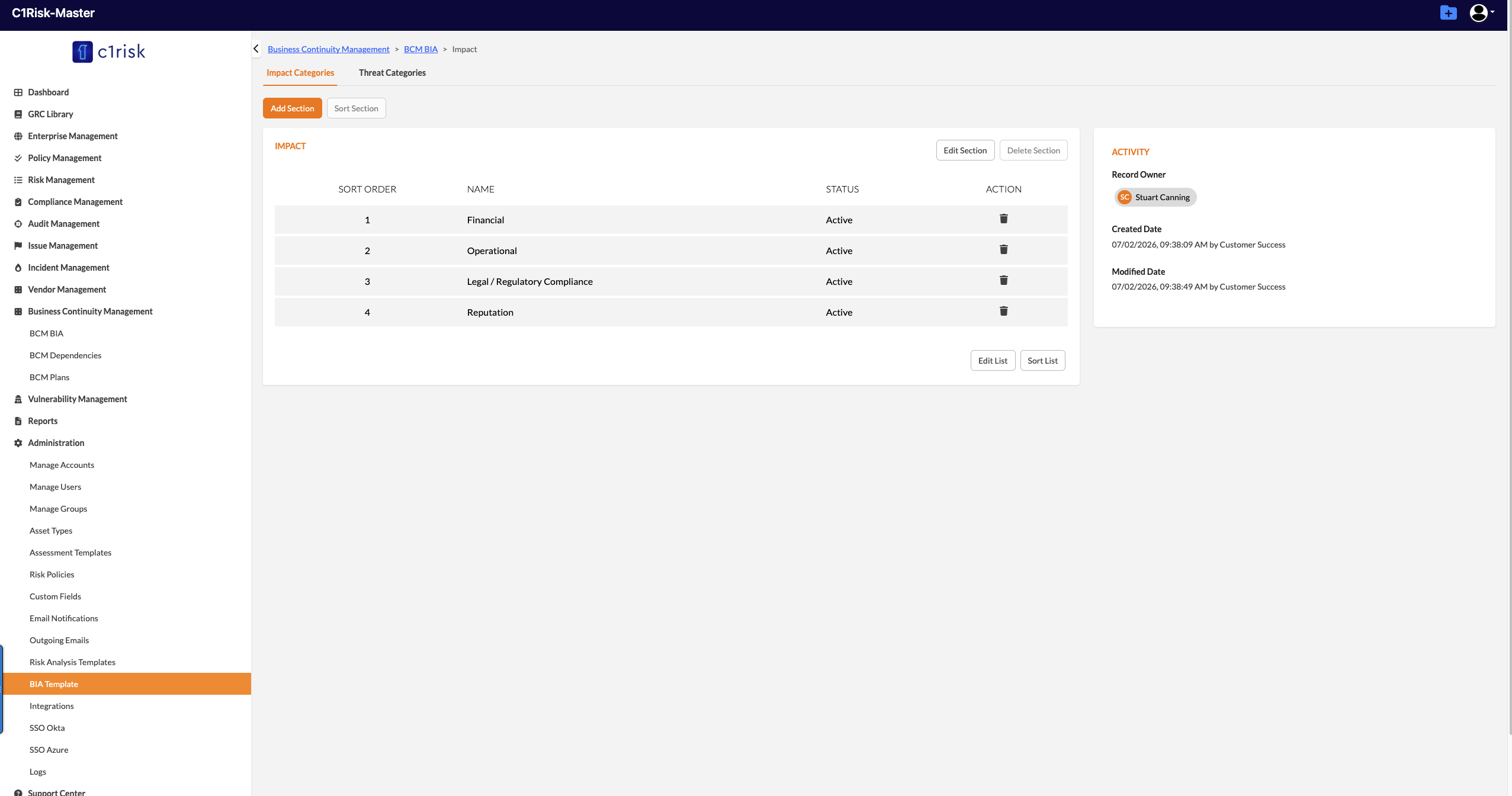
Administrators can customize default BIA templates (Impact and Threat categories) under Administration > BIA Template. The system maintains record integrity when templates change using the following rules:
- On Create: New BIA records automatically load the latest active template.
- On Edit (Open/Re-Open): If a template has been updated since the BIA was created, editing an Open or Re-Open BIA record will automatically sync it to the latest template.
- On Approved/Archived/Submitted Status: If a record is Approved, Archived, or Submitted for Approval, it will not sync to the new template. It remains locked to its historical template state to ensure compliance and audit consistency.
5. BCM Dependencies
The BCM Dependency entity maps the relationships between your BIA records and the upstream or downstream assets/vendors they rely on.
The Mutual Exclusion Rule
To prevent circular dependency mappings and ensure clean data:
- The BIA Asset and the Dependency Asset must be different.
- When creating a dependency record, selecting a specific BIA Asset will automatically filter it out from the available options for the Dependency Asset, and vice versa.
Dynamic Dependency Field Options by Type
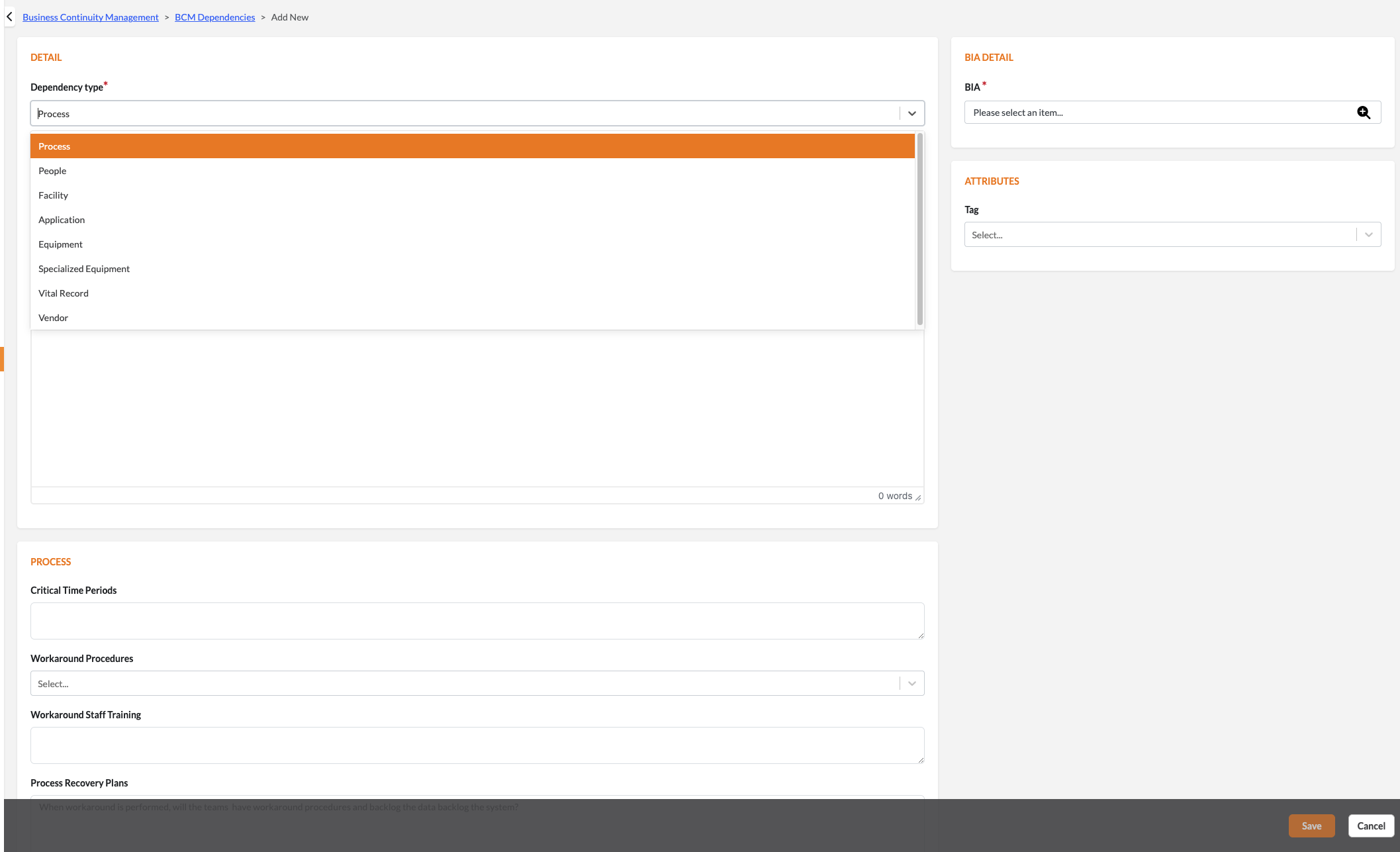
Depending on the Dependency Type selected, C2Risk dynamically updates the input form to capture specific recovery metadata:
Processes
- Interaction Frequency: Daily, Weekly, Monthly, Quarterly, Semi-Annually, Annually, or N/A.
- Critical Time Period: Textarea describing specific time-sensitive operational periods.
- Workaround Procedures: Dropdown (Yes, No, N/A).
- Workaround Staff Training: Dropdown (Yes, No, N/A).
- Process Recovery Plans: Textarea outlining the steps to recover systems and backlog outstanding data.
Applications
- Application RTO: Recovery objective specific to the software system.
- Application RPO: Acceptable data loss specific to the software system.
- Manual Workaround: Dropdown (Yes, No, N/A).
- Manual Workaround Plans: Textarea detailing recovery plans.
- Data Loss Acceptance: Textarea documenting acceptable data gap limits.
- Work Recovery Time: Textarea describing target catch-up windows.
People
- Number of Staff: Numeric input.
- List Key Personnel: Textarea lookup for primary staff.
- List Alternative Key Personnel: Textarea lookup for backup staff.
- People Recovery Plans: Textarea addressing cross-training and emergency staffing.
Equipment & Specialized Equipment
- Quantity: Numeric input.
- Model or Serial Number: Textarea input.
- Equipment Plans / Specialized Equipment Plans: Textarea detailing repair/replacement options, spare parts storage, and specialized contract resources.
Facilities
- Alternative Facility Needed: Dropdown (Yes, No).
- Alternative Facility Type: Dropdown (Work Remote, Private Office, Co-Working Space, Secured Room, Meeting Room, Training Facility, Unique Space).
- Alternative Space Plans: Textarea detailing seat allocation, prioritization rules, and deployment timelines.
Vendors
- Product or Service Description: Textarea capturing the vendor contact, Service Level Agreement (SLA), and BCP validation details.
Vital Records
- Vital Record: Dropdown (Yes, No).
- Vital Record Description: Textarea defining record format (manual vs. digital) and backup location.
- Vital Record Recovery Plans: Textarea detailing data recovery procedures.
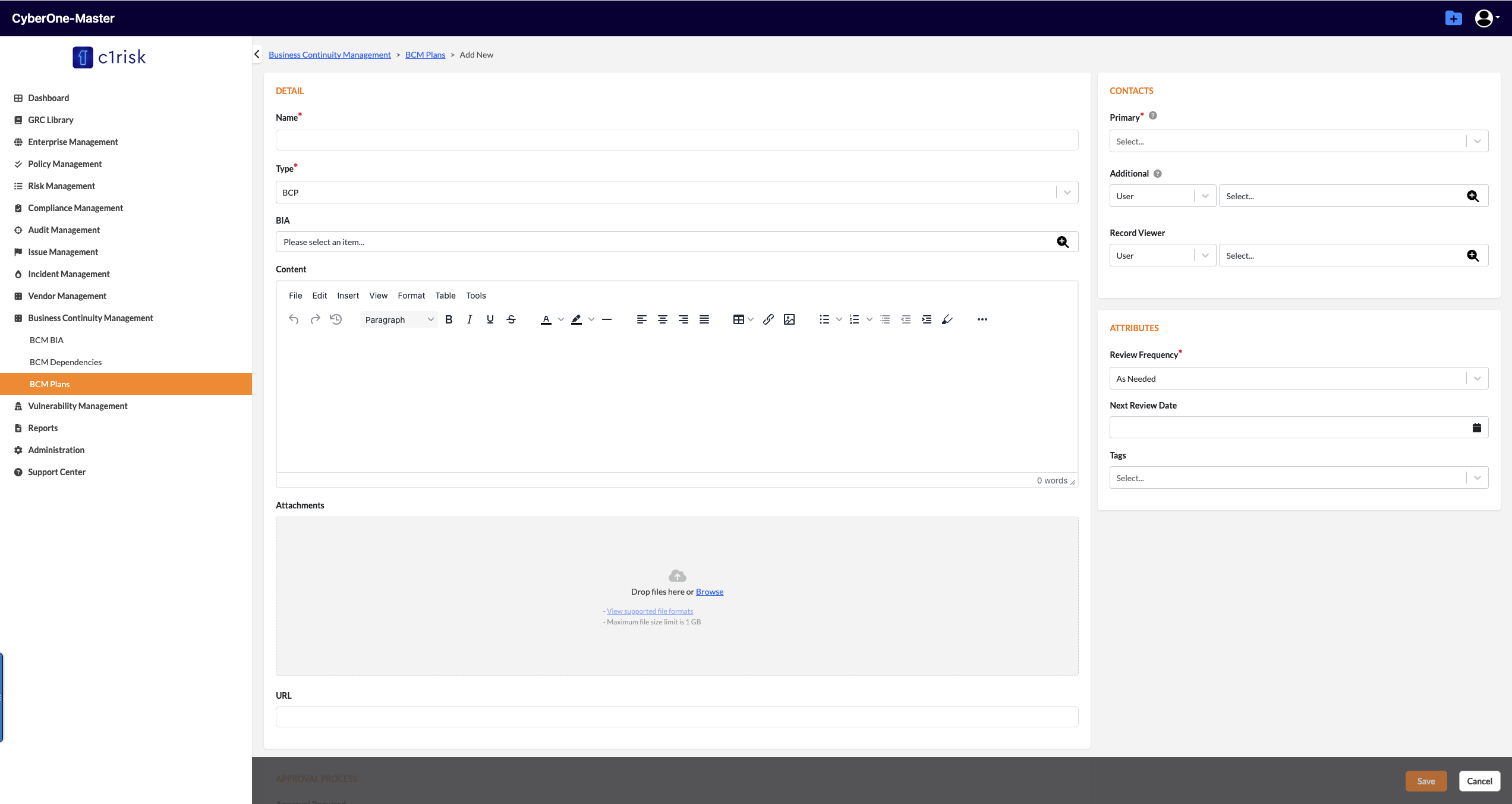
6. BCM Plans
BCM Plans (such as Disaster Recovery, Incident Response, or Business Continuity plans) can be linked directly to your BIA records to close the resilience loop.
- Many-to-Many Relationships: A single BCM Plan can be linked to multiple BIA records, and a BIA record can host multiple recovery plans.
- Submission Content Lock: If "Approval Required" is checked, the system will not allow a plan to be submitted for approval if it is empty. The plan must contain either written rich-text Content, an uploaded Attachment, or a validated URL before submission is unlocked.
7. Cross-Module Integrity & Findings Integration
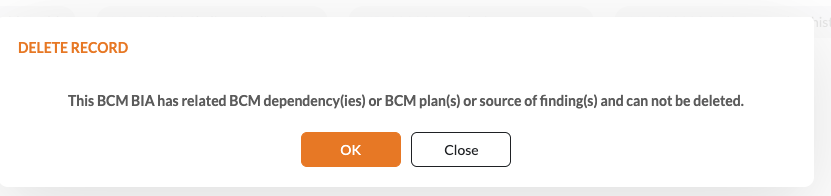
C2Risk allows you to link active security Findings to both BIA and BCM Dependency records.
Cascading Deletion Warnings
If you attempt to delete a BIA or BCM Dependency that has associated Findings, the system enforces compliance safeguard gates:
- A popup modal will appear notifying you that deleting the dependency will impact related security Findings.
- You will be prompted to either confirm deletion of the associated findings or cancel the delete operation to prevent orphan compliance records.
8. BCM Configuration
C2Risk empowers organizations with highly flexible customer configuration options to align GRC workflows with internal business continuity standards. Setting up a functional Business Continuity Management (BCM) workspace is fully customizable—administrators can:
- custom criticality risk policies
- modify the master BIA template sections
- configure target downtime fields.
Managed entirely within the central Administration dashboard, these global controls ensure your workspace dynamically adapts to your terminology and operational thresholds.
BCM Configuration Guide: https://c1risk.freshdesk.com/support/solutions/articles/73000671534-business-continuity-management-configuration-guide
BCM Implementation step by step set up: https://c1risk.freshdesk.com/support/solutions/articles/73000671621-bcm-implementation-guide-step-by-step-setup
Was this article helpful?
That’s Great!
Thank you for your feedback
Sorry! We couldn't be helpful
Thank you for your feedback
Feedback sent
We appreciate your effort and will try to fix the article