C2Risk empowers organizations with highly flexible customer configuration options to align GRC workflows with internal business continuity standards. Setting up a functional Business Continuity Management (BCM) workspace is fully customizable—administrators can define custom criticality risk policies, modify the master BIA template sections, and configure target downtime fields. Managed entirely within the central Administration dashboard, these global controls ensure your workspace dynamically adapts to your terminology and operational thresholds.
1. BIA Criticality Calculation
In C2Risk, the criticality of a Business Impact Analysis (BIA) record is not set manually. Instead, it is dynamically computed by the system based on active risk scoring rules.
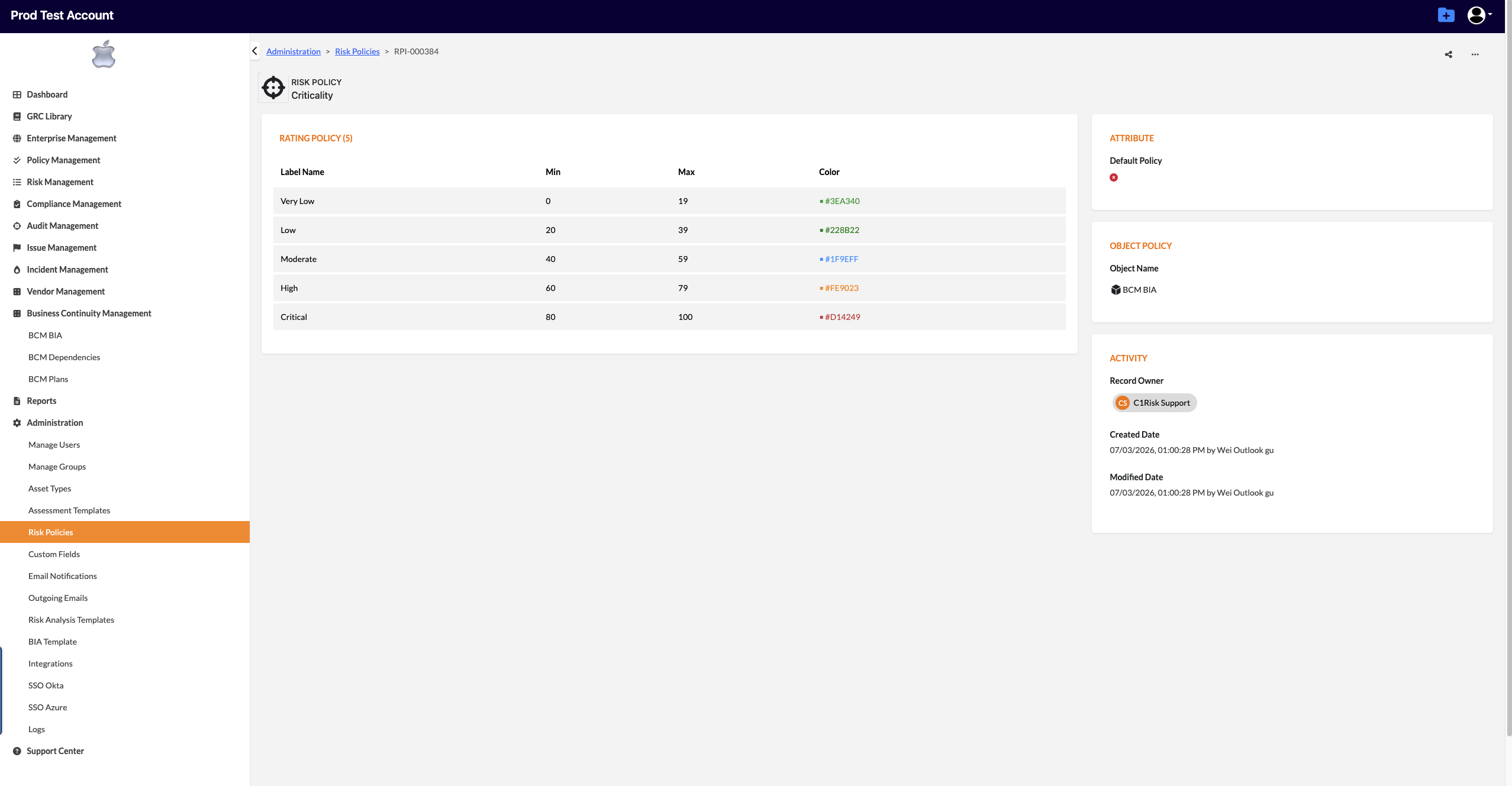
Configuring the Criticality Risk Policy
- Navigate to Administration > Risk Policies.
- Locate the system-defined record named Criticality.
- Define your organization's criticality thresholds (e.g., mapping specific Impact Score percentage ranges to ratings of Critical, High, Medium, Low, or Very Low).
How BIA Criticality Resolves in Real-Time
- Automated Calculation: the system automatically calculates the BIA's criticality rating by evaluating the record's final Impact and Threat Score against the active Risk Policy.
2. Customizing the Master BIA Template
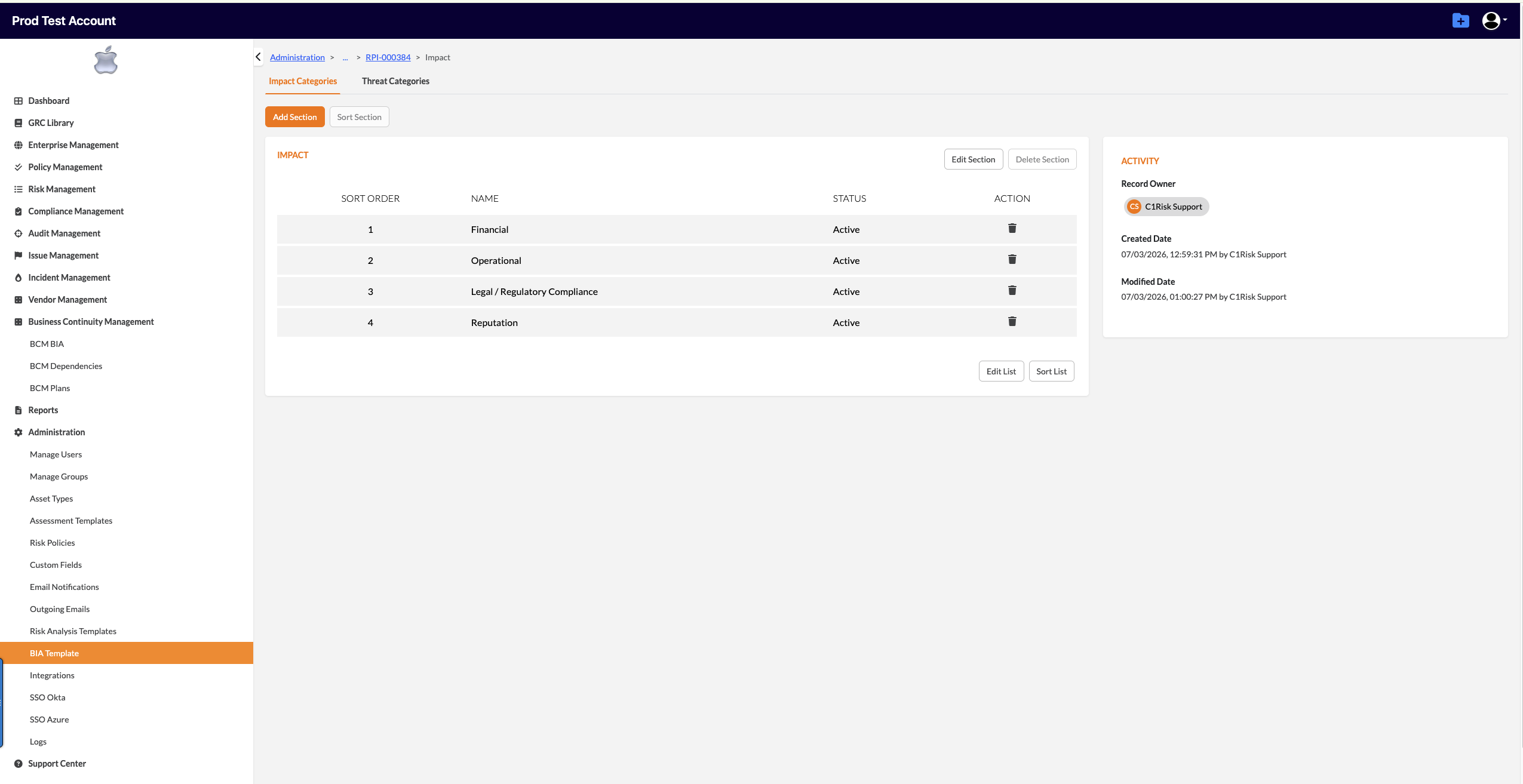
Administrators can design and customize the operational impact categories and threat scenarios used to evaluate assets under Administration > BIA Template (access is strictly restricted to users with administrative permissions).
The template configuration workspace is divided into two primary subtabs: Impact Categories and Threat Categories.
Default BIA Template Structures
C2Risk provides a pre-configured default schema that administrators can activate, deactivate, or modify:
Category Tab | Default Sections | Default Included Categories |
|---|---|---|
Impact | Financial Impact | Revenue loss, Increased operational cost, Penalties/fines, Recovery expenses |
Operational Impact | Process interruption, Productivity loss, Service outage, Delayed operations, Supply chain disruption | |
Reputational Impact | Customer dissatisfaction, Negative publicity, Loss of trust, Brand damage, Social media escalation | |
Threat | Cybersecurity Threats | Ransomware, Malware, Phishing, DDoS attack, Data breach, Insider threat |
IT System Failure | Application outage, Server failure, Database corruption, Network outage, Cloud provider failure, Hardware failure | |
Human-Related Threats | Human error, Key personnel loss, Labor strike, Sabotage, Fraud | |
Environmental Threats | Fire, Flood, Earthquake | |
Facility Threats | Power outage, HVAC failure, Building access issue | |
Third-Party / Vendor | Supplier disruption, Vendor bankruptcy, Logistics failure, Outsourcing failure | |
Regulatory Threats | Regulatory changes, Sanctions, Political unrest, Trade restrictions | |
Public Health Threats | Pandemic outbreak, Workforce unavailability, Travel restrictions |
Template Management Controls
- Section Management: Administrators can add new sections, edit existing section names, delete sections, or re-order them using the Sort Section controls.
- Category Management: Within each section, administrators can add custom categories, rename existing ones, delete unneeded entries, or sort their order.
- Visual Layout on Records: On active BIA assessment records, categories are automatically arranged left-to-right in rows of five categories per row.
Universal Template Guardrails
- Uniqueness Constraints: To prevent data overlap, section names must be globally unique across the template, and category names must be unique within their assigned section.
- Minimum Content Rules: The template must contain at least one section for Impact and one section for Threat.
- Active Value Requirements: Each section must contain at least one active category. If a category is no longer needed, administrators can delete it, provided it is not the last active category in that section.
- Final Section Lock: The final remaining section in either tab cannot be deleted and must always contain at least one active evaluation category.
- Template Synchronization & Locking Rules:
- Editing an Open or Re-Open BIA record will automatically synchronize and pull in any master template updates made since the record's creation.
- If a BIA record is Submitted for Approval, Approved, or Archived, it is locked and will not pull template updates, preserving historical audit integrity.
3. BCM Custom Fields & Dropdown Validations
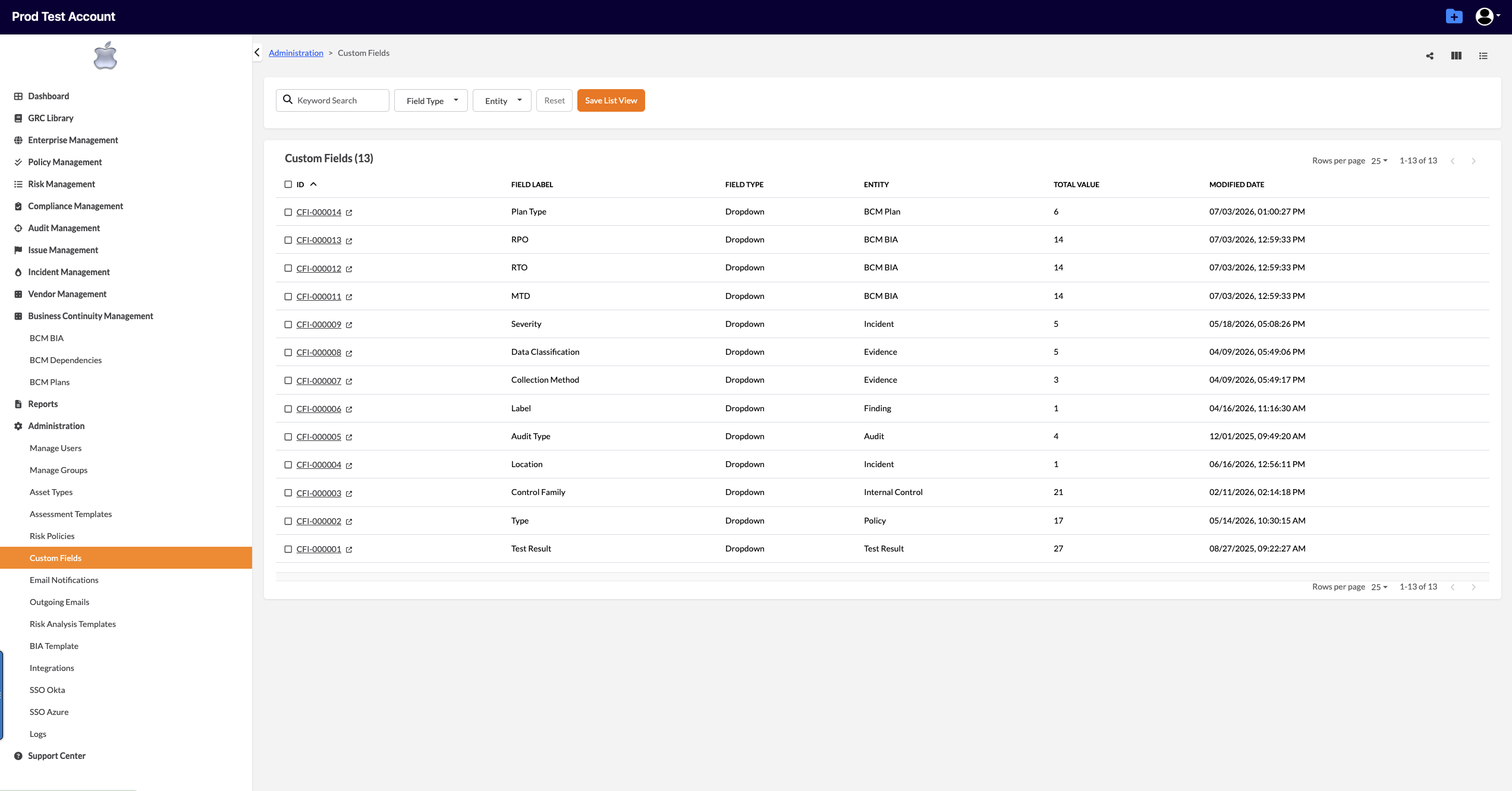
Administrators can tailor the specific dropdown values and interval lists used across the BCM module under Administration > Custom Fields.
Key BCM Attributes Managed as Custom Fields
- BIA Entity Attributes: Dropdown values for Maximum Tolerable Downtime (MTD), Recovery Time Objective (RTO), and Recovery Point Objective (RPO).
- BCM Plan Entity Attributes: Selection values for Plan Type (e.g., BCP, BRP, DRP, CMP, ERP, or Other).
Dropdown Value Validation Safeguards
When modifying list values within the Edit List configuration popup, the system enforces strict data integrity rules to prevent user configuration errors:
- Anti-Orphan Validation: If an administrator unselects all values in an attempt to save an empty list, the system disables the Save button and displays a red warning at the bottom of the popup:
At least 1 value must be selected. - Anti-Duplication Validation: The system dynamically scans for duplicate entries. If duplicate values are entered in the editor list, C2Risk disables the Save action and displays an error message:
Cannot save duplicate values.
Was this article helpful?
That’s Great!
Thank you for your feedback
Sorry! We couldn't be helpful
Thank you for your feedback
Feedback sent
We appreciate your effort and will try to fix the article